How Do I Add Text Messaging or WhatsApp to Google Business Profile?
Add text messaging or WhatsApp when Chat is available, connect a number or account the business can keep, assign reply ownership, and test the full customer path.
Last checked: July 21, 2026
A claimed and verified Business Profile may offer Edit profile -> Contact -> Chat, where the owner can choose WhatsApp or Text message. Google says this option is available only in select regions and may not appear for every profile.
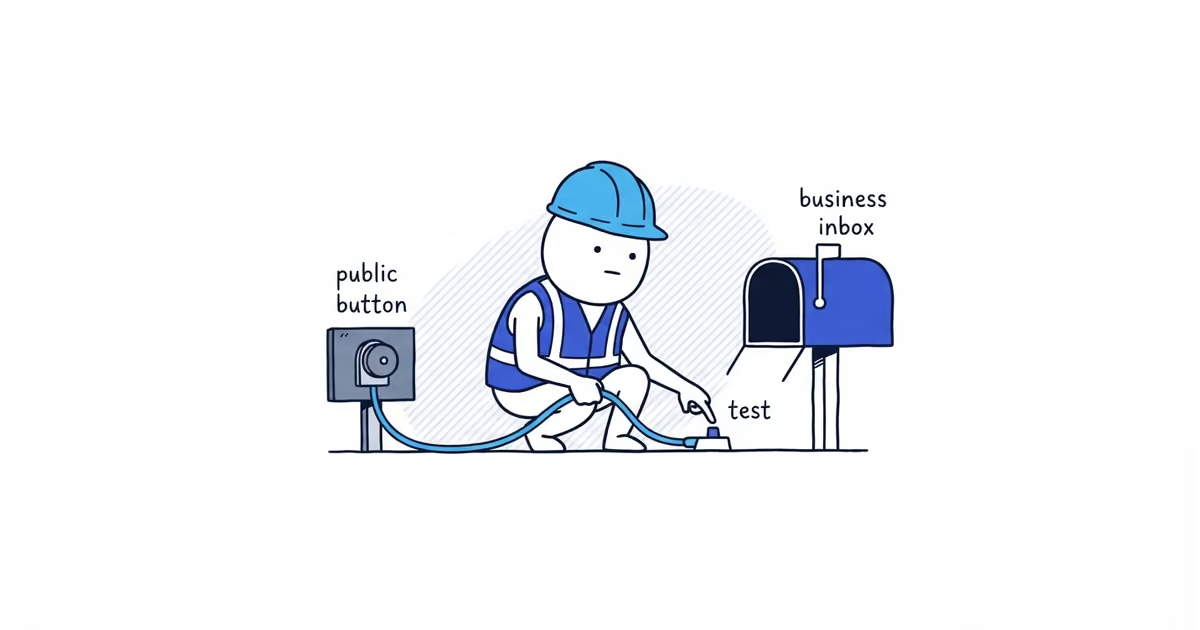
If Chat is available, connect a number or WhatsApp account the business can keep, save it, and test the public button from another device. If Chat is absent, keep the normal phone and website routes accurate instead of forcing a messaging link into the wrong field.
Check whether Chat is available
| What you see | Next step |
|---|---|
| Chat appears under Contact | Choose the supported destination and continue setup |
| Chat does not appear | Keep the normal phone and website customer paths accurate; availability can vary |
| Profile is not claimed or verified | Complete claim and verification before expecting the option |
Google’s controls change. Check the live editor and official help again when you perform the setup.
Add WhatsApp or text messaging
Google currently documents this path:
- Open the Business Profile.
- Select Edit profile, then Contact.
- Beside Chat, select the edit control.
- Open the Chat dropdown.
- Choose WhatsApp or Text message.
- For WhatsApp, enter a valid click-to-chat URL. For text messaging, enter a phone number that can receive SMS.
- Save.
Google’s current help also says that when both options are added, only the text-message option is shown to customers. Confirm the public result instead of assuming both buttons will appear.
Choose a business text number or WhatsApp account
For SMS, use a number that can receive texts and will remain with the business when a team member leaves. For WhatsApp, use an account the business controls and the correct click-to-chat URL.
A personal phone can work for a solo owner who accepts the privacy tradeoff. A small team needs clear access and assignment so replies are not duplicated or missed.
Google Business Profile messaging checklist
| Check | Solo owner | Small team |
|---|---|---|
| Destination | Number or WhatsApp account the owner will keep | Shared business number or account with named access |
| Notifications | Enabled during the hours the owner can respond | Enabled for the assigned person or rota |
| Ownership | Owner knows where every message arrives | One person owns each conversation |
| First reply | Confirms service, broad location, and next step | Same short intake standard across responders |
| After hours | Sets an honest reply expectation | Defines who checks and when |
| Sensitive details | Moves them to the normal secure booking process | Documents the handoff and who may access the details |
| Test | Sends a real public-profile test | Tests receipt, assignment, reply, and after-hours behavior |
A shared inbox is optional. It helps when several people answer, access leaves with an employee, or the team needs assignment records. Google does not require one.
Write a short first response
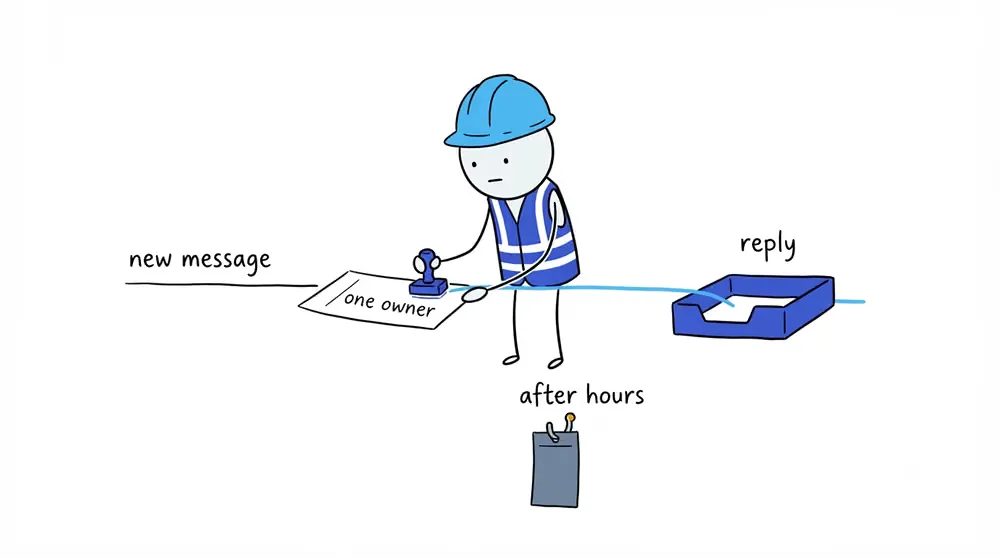
The first reply needs four things:
- Acknowledge the request.
- Confirm the service needed.
- Confirm the broad service location, without collecting unnecessary private detail.
- State the next step and a truthful response expectation.
For example:
Thanks for contacting North Street Plumbing. Is this for a leak, blockage, installation, or another plumbing issue, and which town is the property in? We check new messages until 5 p.m. and will confirm the next available callout after those details.
Do not promise an instant reply or 24/7 coverage unless someone is assigned to provide it.
Do not request payment-card details, identity documents, alarm codes, medical information, or other unnecessary sensitive material in the chat. Move sensitive steps into the business’s normal secure booking or payment process.
Test Google messaging customer path
Use another account or device:
- Find the public profile in Search or Maps.
- Confirm the messaging option is visible.
- Start a real test conversation.
- Check that it reaches the intended number or WhatsApp account.
- Confirm the notification arrives.
- Assign or open the conversation.
- Send the first reply.
- Check what happens outside response hours.
The setting is not finished until a real customer can use it.
Plumbing team messaging example
North Street Plumbing uses a business SMS number that the owner and office manager can both access. On the first test, each assumes the other will reply. The message sits unanswered for 20 minutes, even though both phones received it.
They change the rule: the office manager owns every new conversation during normal hours and marks it assigned before replying; the owner covers a written after-hours window. On the second test, the public button opens the correct thread and the office manager claims it immediately. The first response asks for the plumbing problem and town, then promises a call about availability rather than an immediate appointment.
Payment and access details move to the normal booking process. The number, owner, first reply, and handoff are now clear.
Avoid old Google Business Messages tutorials
Google stopped new conversations in legacy Business Messages on July 15, 2024, and ended it on July 31, 2024. It is not the current WhatsApp or text option.
Setup is complete when the option is saved, the business keeps control of the number or account, the public button reaches it, notifications work, one person owns each reply, and the team knows what happens after hours and with sensitive details.
Frequently asked questions
Why don’t I see Chat on my Google Business Profile?
Google says Chat options are available only in select regions and may not be available for a particular profile. Confirm that the profile is claimed and verified, then rely on the current phone and website paths if the control remains absent.
Can I add both WhatsApp and text messaging?
Google’s current help allows both to be entered but says only text messaging will be shown to customers when both are added. Test the customer view because product behavior can change.
Do I need messaging software?
No. A solo owner can use a number or WhatsApp account the business controls. Consider a shared inbox only when assignment, shared access, or staff changes create a real operational need.
Sources
- google-business-profile
- business-messaging
- text-messaging
- lead-response
- home-services