How Do I Add Emergency Services to My Google Business Profile?
Represent emergency availability accurately by aligning services, categories, hours, phone intake, dispatch capability, and the website with the real response model.
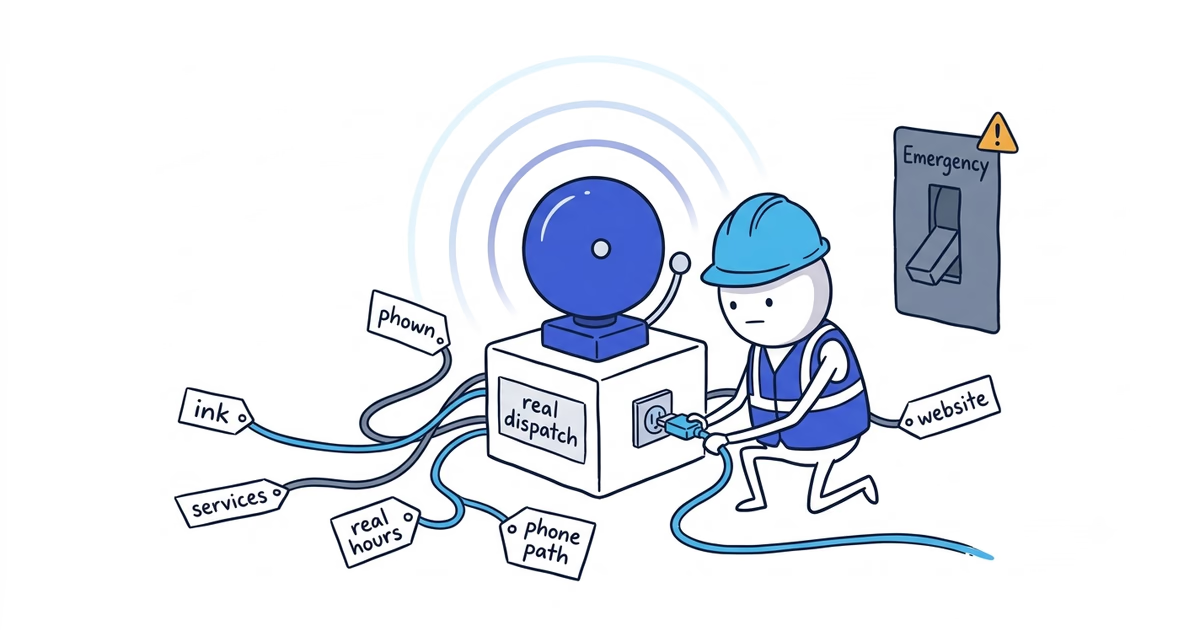
Google Business Profile does not have one universal emergency-service switch. To represent emergency work accurately, the business must align its Services, categories, hours, phone or intake path, and website.
Start by writing what the operation can really do after hours. “We answer the phone” and “we dispatch a qualified team member now” are not the same promise.
The setup has four parts:
- Add the emergency jobs the team genuinely accepts under Services.
- Keep the category tied to what the business is, not the urgent keyword it wants to target.
- Set hours to the periods when the operation can deliver the public promise.
- Send customers to a phone or intake path the team monitors, then test it after hours.
Google documentation checked: July 21, 2026 (United States). Category names and feature availability can change by account, category, and region, so verify every option in the live profile before editing it.
What counts as an emergency service on Google Business Profile?
Write one sentence that answers all five questions:
- Who answers the customer?
- Which jobs count as emergencies?
- When does triage happen?
- When can a qualified team member actually be dispatched?
- Which service area does the response cover?
For example:
A trained dispatcher answers plumbing calls at all hours, confirms that the address is in our emergency coverage area, screens for active water or sewer problems, and contacts the on-call plumber for qualified jobs.
That is an operating statement. 24/7 emergency plumber by itself is not.
How to show emergency services on your profile
Qualified emergencies dispatched 24/7
| Profile element | What it should say or do |
|---|---|
| Category | Use only a current category that accurately describes the business type |
| Services | Add the real emergency job types the on-call team accepts |
| Hours | Use 24-hour hours only because the operation supports the promise around the clock |
| Phone or intake | A person or functioning process triages the job and reaches the on-call team |
| Website | State covered jobs, service area, intake steps, and any truthful response limits |
After-hours calls with next-business-day dispatch
| Profile element | What it should say or do |
|---|---|
| Category | Do not choose a category to imply a 24/7 response |
| Services | Describe the actual after-hours or next-day offer without false urgency |
| Hours | Keep the real operating hours |
| Phone or intake | Say clearly that the request is reviewed for next-business-day follow-up |
| Website | Do not claim 24/7 service or immediate dispatch |
Urgent work during extended hours
| Profile element | What it should say or do |
|---|---|
| Category | Keep the normal, accurate business identity |
| Services | Add urgent services only when they are genuinely offered |
| Hours | Show the actual extended or split operating windows |
| Phone or intake | Route calls during the stated window and explain what happens outside it |
| Website | Publish the exact availability rather than always open |
Category, Services, Hours, and the customer path do different jobs. They should agree, but one field cannot substitute for another.
Should you change the business category for emergency services?
A category should describe what the business is. It should not be selected because it contains a valuable word or sounds urgent.
Use only categories available in the current selector that accurately describe the real operation. Do not add 24/7, emergency, or another search phrase to the business name unless it is part of the eligible name used in the real world.
Changing categories can also cause Google to request verification again. Do not make a category edit when the real need is to add an accurate service or correct the hours.
How to add emergency work under Services
List the job the customer can hire the business to perform, using normal language. Depending on the real operation, that might include emergency drain clearing, burst-pipe response, no-heat diagnostics, electrical fault diagnostics, board-up service, or lockout service.
Do not create a row of duplicates such as:
- 24/7 plumber
- Emergency plumber
- After-hours plumber
- Urgent plumber near me
Those are variations of a claim, not four separate services. Use one accurate service name and a short description that explains the scope or availability.
For example:
Emergency plumbing response: After-hours triage and dispatch for active leaks, burst pipes, sewer backups, and other qualified plumbing emergencies within our stated coverage area.
Use that wording only when the business can deliver it. If after-hours calls are returned the next morning, say so instead.
To edit Services, sign in to the managing Google account, find the profile in Search or Maps, and open Edit services or the Services section under Edit profile. Review suggested services, add an accurate custom service when needed, and save. Labels can differ on the live profile.
Set 24-hour hours only for a real 24-hour operation
A voicemail box, web form, or answering service that takes a message does not by itself make the business open 24 hours.
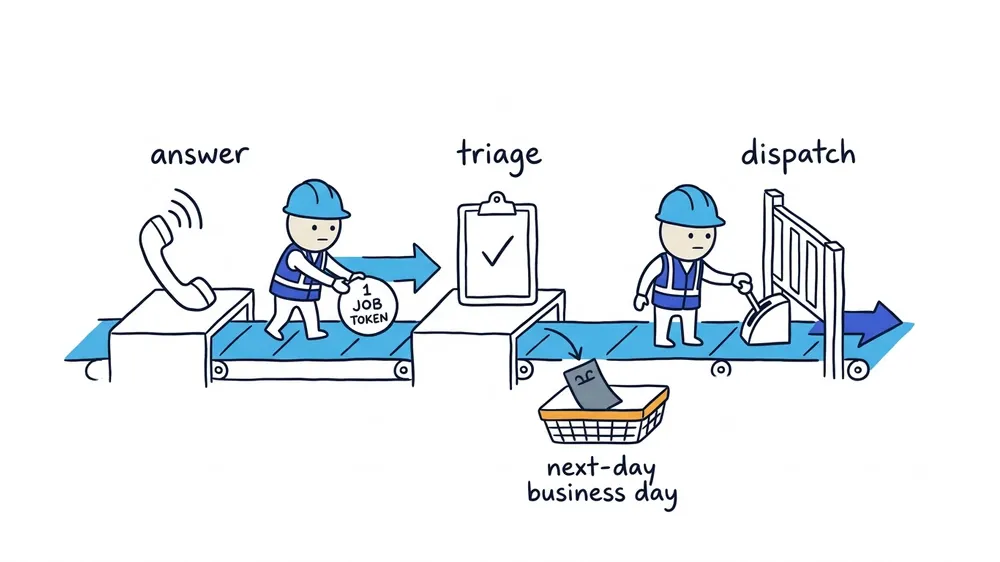
Separate these four states:
- Answer: A person picks up or responds to the contact.
- Message collection: A system records details for later.
- Triage: Someone qualified assesses urgency and the correct next step.
- Dispatch: A team member is assigned and can travel to the customer.
If the profile says open 24 hours, a customer will reasonably expect the business to be operating around the clock. Use the 24-hour setting only when the entire customer promise supports that expectation.
To change regular hours, open the signed-in profile, choose Edit profile, find Hours, and use the regular-hours control shown. For a day that truly runs from midnight to midnight, use the live editor’s 24-hour option. Use split hours when the business has separate operating windows rather than pretending it is continuously open.
If the weekly schedule or holiday exception is still unclear, the business hours guide helps match the real operating pattern to Regular, Special, More, or Temporarily closed settings.
Should emergency customers call or book online?
Urgent diagnostic work usually belongs behind Call, not instant confirmed booking. A customer with active water, loss of heat, sparking equipment, or a security problem may choose the wrong calendar service or wait for a confirmation email while conditions worsen.
An emergency intake form can still help when it:
- Makes clear that submission is not a confirmed appointment
- Collects the service address and safe contact details
- Asks what is happening now
- Gives the correct immediate next step
- Reaches the on-call process rather than an inbox checked next week
When the profile offers an action link, send it to a dedicated, functioning page where the customer can complete that action. The website must state the same service area, covered job types, hours, and response limits as the profile.
Emergency service setup examples
Plumber with true 24/7 dispatch
The company has a staffed or reliably answered emergency line, a rotating on-call plumber, stocked vehicles, a defined coverage area, and a triage checklist.
- Services: One clear emergency plumbing entry covering the qualified jobs
- Hours: 24 hours only because the operation supports the promise every day
- Customer path: Call first; intake confirms location and urgency before dispatch
- Website: Lists covered emergencies and avoids an unsupported arrival-time guarantee
HVAC company with evening triage and next-day dispatch
Calls are answered until 10 p.m. A trained person records symptoms and safety concerns, but technicians begin normal dispatch the next morning.
- Services: After-hours HVAC triage or the actual diagnostic service, described literally
- Hours: The real operating window, not 24 hours
- Customer path: Call or intake request with explicit next-business-day follow-up
- Website: Says that evening calls are screened and scheduled for the next available service window
This company can provide useful after-hours support without calling itself a 24/7 dispatch operation.
Electrician with extended weekday urgent service
The company handles urgent faults from 7 a.m. to 9 p.m. on weekdays but closes overnight.
- Services: The actual urgent diagnostic work it accepts
- Hours: The extended weekday window, with closed or different weekend hours
- Customer path: Call during the stated window; no overnight confirmed booking
- Website: Shows the same cutoff and explains what the business can assess
The correct setup is less dramatic than always open, but it tells the customer exactly when help is available.
How to test an emergency service setup
Run this test after publishing the changes:
- View the public profile while signed out on a phone.
- Read the category, Services, hours, and action button as one customer journey.
- Call outside normal office hours.
- Record whether a person answers, a message is taken, triage occurs, and dispatch is possible.
- Submit a test intake request if the profile uses one.
- Check that the on-call team receives the right details.
- Compare the confirmation message with what will really happen next.
- Check the website for the same coverage area, hours, and limits.
Fix the public claim when the test result differs from the promise. Do not wait for an urgent customer to discover the gap.
Once the public promise and dispatch model are accurate, the emergency pricing guide helps calculate the added after-hours cost and explain the fee without turning the profile into a pricing page.
Frequently asked questions
Is there an emergency-services setting on Google Business Profile?
There is no universal emergency-services switch. Add the real emergency jobs under Services, keep the category accurate, set truthful hours, and connect the profile to a phone or intake process the team monitors.
Can I mark my business open 24 hours if an answering service picks up?
Only when that answering service reaches a qualified on-call process and the business can deliver the around-the-clock service shown. Taking a message for the next business day is not a 24-hour operation.
Should I add 24/7 or emergency to my Google business name?
Only if that wording is part of the eligible real-world name the business consistently uses. Do not add it to the profile as a search phrase or a substitute for accurate Services and hours.
Sources
- google-business-profile
- emergency-services
- business-hours
- after-hours-service
- home-services