How Do I Set Business Hours and Holiday Hours on Google?
Choose the correct Google Business Profile setting for regular hours, split schedules, holiday exceptions, service-specific hours, and temporary closures.
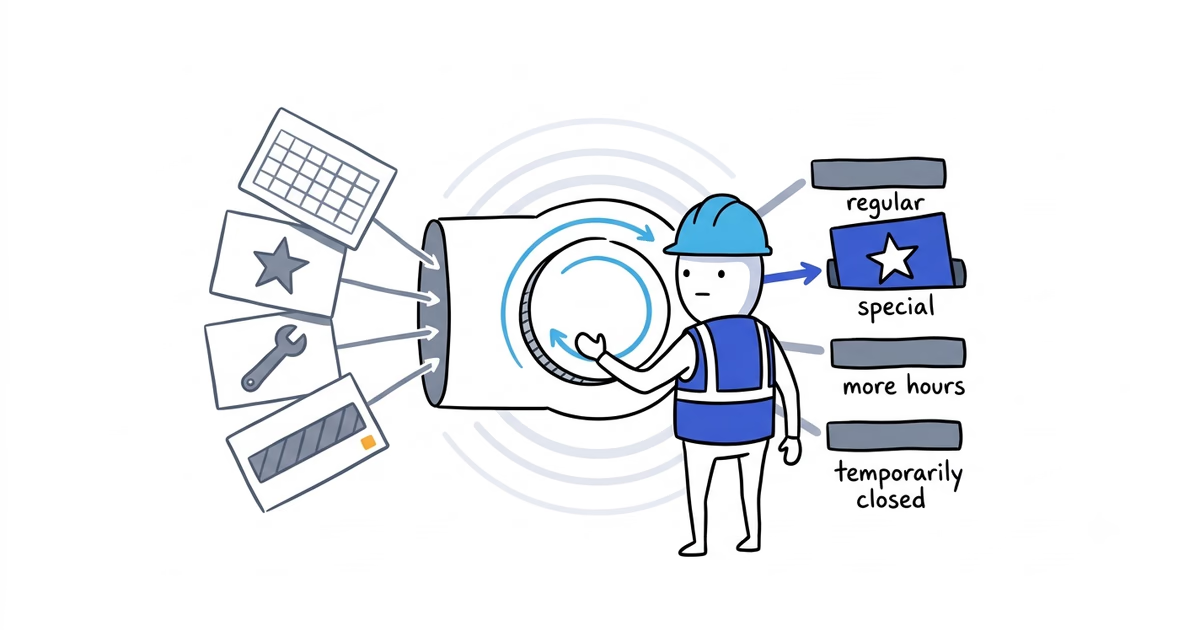
Use regular hours for the recurring week. Use Special hours for holidays and short exceptions. Use More hours only when Google offers an eligible service-specific schedule. For a closure lasting seven days or longer, use Temporarily closed instead of stretching Special hours across the shutdown.
The hours should describe the operation customers can actually reach or receive service from. A voicemail box or web form that accepts messages overnight does not make the business open 24 hours.
Google documentation checked: July 21, 2026 (United States). Google can change labels by device and account, so follow the controls shown on the live profile.
Which Google Business Profile hours setting should you use?
| Real operating pattern | Google setting | What to enter |
|---|---|---|
| The same working windows repeat each week | Regular hours | The normal opening and closing time for each day |
| A day has a morning block and a separate evening block | Regular hours with split periods | Both open periods, leaving the closed gap visible |
| The business genuinely operates from midnight to midnight | 24 hours | Google’s 24-hour option for that day |
| The business operates only by appointment and has no regular customer-facing hours | No regular hours, when Google’s eligibility guidance applies | Do not invent a public schedule simply to fill the field |
| A holiday, event, or short exception changes the schedule | Special hours | The exact hours or closed status for each affected date |
| An eligible service has different hours from the main business | More hours | The separate schedule only when the live profile offers the relevant type |
| The business will be closed for seven consecutive days or more | Temporarily closed | Mark the profile temporarily closed, then reopen it when the operation resumes |
Pick the row that describes the real operation before opening the editor. The field name is not the decision; the schedule is.
What regular hours should a home-service business show?
For a service-area business, regular hours should tell a customer when the business is normally operating for the service it presents. That may include answering, scheduling, and sending team members into the field. The hours should not imply that customers can visit a private or hidden address.
Write the actual weekly schedule on paper first:
| Day | Real operation | Regular-hours entry |
|---|---|---|
| Monday | Calls and field service from 7 a.m.–5 p.m. | 7:00 a.m.–5:00 p.m. |
| Tuesday | Calls and field service from 7 a.m.–5 p.m. | 7:00 a.m.–5:00 p.m. |
| Wednesday | Calls and field service from 7 a.m.–5 p.m. | 7:00 a.m.–5:00 p.m. |
| Thursday | Calls and field service from 7 a.m.–5 p.m. | 7:00 a.m.–5:00 p.m. |
| Friday | Calls and field service from 7 a.m.–5 p.m. | 7:00 a.m.–5:00 p.m. |
| Saturday | Open 8 a.m.–noon and 2–5 p.m. | 8:00 a.m.–12:00 p.m.; 2:00–5:00 p.m. |
| Sunday | Closed | Closed |
The Saturday gap matters. One continuous 8:00 a.m.–5:00 p.m. entry would tell customers the business is open while the team is unavailable from noon to 2 p.m.
Google’s current hours editor supports separate open periods within a day. Use them instead of hiding the closure.
When should you use 24-hour hours?
Use Open 24 hours only when the business genuinely operates through the entire day.
At 2 a.m., the stated intake process must be reachable, the business must be able to assess the request, and the operation must be able to provide the service the profile promises. An answering service can support that operation when it reaches a qualified on-call process. A voicemail box checked the next morning cannot.
Do not mark all seven days open 24 hours because the website accepts forms at any time. The form is always available; the business is not necessarily operating. The separate emergency-service setup should explain answer, triage, and dispatch in more detail; the Hours field only needs to state when the business is genuinely operating.
If the business truly accepts urgent work after hours, the emergency service setup guide helps verify that answering, triage, dispatch, and the website support the same promise.
Should an appointment-only business list Google hours?
Google’s representation guidelines say certain businesses that operate only by appointment should not provide business hours. Do not create a false 9-to-5 schedule solely to make the profile look complete.
Use this distinction:
- If the business maintains real, recurring operating hours for calls, field service, or another customer-facing function, enter those hours.
- If it genuinely operates only through individually arranged appointments and has no regular customer-facing schedule, follow the live profile’s eligibility guidance rather than inventing one.
Appointment availability inside a scheduling system must still match the operation. A calendar that offers Sunday visits does not agree with a profile and team schedule that treat Sunday as closed.
If customers can choose appointments online, the booking link guide helps decide whether the path should confirm a booking, collect an estimate request, or direct the customer to call.
Google Business Profile Special hours vs. More hours
These fields solve different problems.
Special hours are for dates that break the normal week
Google says Special hours can cover temporary changes or closures lasting up to six consecutive days. Use them for:
- Holidays
- A one-day training closure
- A company event
- A short vacation
- A weather closure
- A temporary seasonal schedule change on specific dates
Special hours override the regular schedule for the selected date. They do not replace the recurring week.
If the business is closed for seven consecutive days or longer, Google directs businesses toward Temporarily closed. That gives customers a clearer status than a long chain of daily exceptions.
More hours are for an eligible service-specific schedule
More hours let certain eligible businesses show a schedule for a particular service or activity that differs from regular hours. The available types depend on the profile.
Do not use More hours as a homemade emergency-hours field. If the live profile does not offer a relevant type, it is not a place to invent one. Keep the regular hours accurate and explain the emergency or after-hours customer path through the appropriate service, phone, link, and website information.
Should you add holiday hours to Google Business Profile?
Yes. Confirm every relevant holiday, even when the hours stay the same.
Google recommends confirming holiday hours when they match the regular schedule. That confirmation tells customers the hours were reviewed rather than assumed. Google does not say that failing to confirm holiday hours lowers rankings, so do not treat this as a ranking tactic.
Set the schedule the business will actually run. Do not copy default retail hours or another contractor’s calendar.
Annual holiday and exception checklist
Review the calendar at least quarterly and again before each affected date.
| Check these dates or events | Decide this before editing Google |
|---|---|
| Federal holidays: New Year’s Day, Martin Luther King Jr. Day, Presidents Day, Memorial Day, Juneteenth, Independence Day, Labor Day, Indigenous Peoples’ Day or Columbus Day, Veterans Day, Thanksgiving, and Christmas | Normal hours, reduced hours, closed, or a real emergency-only operation |
| Business-specific dates: Christmas Eve, the Friday after Thanksgiving, team training, company events, owner or crew vacations, and seasonal shutdowns | The exact open window; use Temporarily closed when a shutdown reaches seven consecutive days |
| Short-notice changes: severe weather, local events, equipment problems, or another operating interruption | Same-day Special hours, plus matching phone, website, intake, and team updates |
This is a reminder, not a prescribed schedule. A plumbing company with a real on-call operation and a cleaning company closed for the day will make different choices for the same holiday.
Google Business Profile hours example for a contractor
Northside Plumbing normally operates Monday through Friday from 7 a.m. to 5 p.m. On Saturday it accepts scheduled work from 8 a.m. to noon and 2 p.m. to 5 p.m. It closes Sunday.
For Independence Day, the regular Friday schedule would normally apply, but the company will close. It enters the date under Special hours and marks it closed.
The website still accepts requests while closed and tells customers that normal dispatch resumes on the next open day. Northside does not mark the profile open 24 hours merely because the form works. Any genuine emergency line is explained as a separate after-hours process rather than used to blur the regular schedule.
How to update regular hours on Google
- Sign in to the Google account that manages the Business Profile.
- Find the profile in Google Search or Maps.
- Select Edit profile.
- Open Business information, then find Hours.
- Choose the regular-hours control shown on the live profile.
- Mark each day open or closed.
- Enter the opening and closing time for every open day.
- Add a second period when the day has a real closed gap.
- Use the 24-hour option only for a midnight-to-midnight operation.
- Save the edit.
Do not promise exactly when the change will appear. Check the public profile after Google processes it.
How to add or confirm holiday hours
- Open the signed-in Business Profile and go to Edit profile.
- Find Hours, then open Special hours.
- Review any holiday dates Google suggests.
- Confirm the regular hours when they remain unchanged, or enter the actual reduced hours or closed status.
- Add a custom date for a business-specific exception that is not suggested.
- Save the changes.
Repeat the check before each upcoming holiday. Do not assume last year’s schedule carried forward or that the same weekday pattern applies.
How to verify Google Business Profile hours
After saving:
- View the profile while signed out in Google Search.
- Check the same profile in Google Maps.
- Repeat both checks on a phone and desktop.
- Expand the weekly hours and confirm every split period.
- Check the next holiday or exception date.
- Call during an open period and after closing.
- Compare the phone message, website, booking availability, and intake confirmation with the public hours.
- Confirm the team schedule can fulfill every open window.
When the public schedule changes, update the customer path and the operation together. Correct Google hours paired with an old voicemail message or an unavailable crew still gives the customer the wrong answer.
Frequently asked questions
Should I confirm Google holiday hours when they have not changed?
Yes. Google recommends confirming holiday hours even when they match the regular schedule. Confirmation tells customers the hours were reviewed; Google does not publish a ranking benefit for doing it.
When should I use Special hours instead of Temporarily closed?
Use Special hours for holidays, exceptions, or closures lasting up to six consecutive days. For a closure of seven consecutive days or longer, use Temporarily closed instead.
Can I mark my Google Business Profile open 24 hours if I accept online requests?
No. A form or voicemail can collect requests at any time, but the 24-hour setting should reflect a business that genuinely operates and supports its customer promise around the clock.
Sources
- google-business-profile
- business-hours
- holiday-hours
- special-hours
- temporary-closure
- home-services