How Do I Connect My Website to Google Business Profile?
Connect your website to Google Business Profile by choosing the right canonical URL, saving it to the Profile, and testing the public website button live.
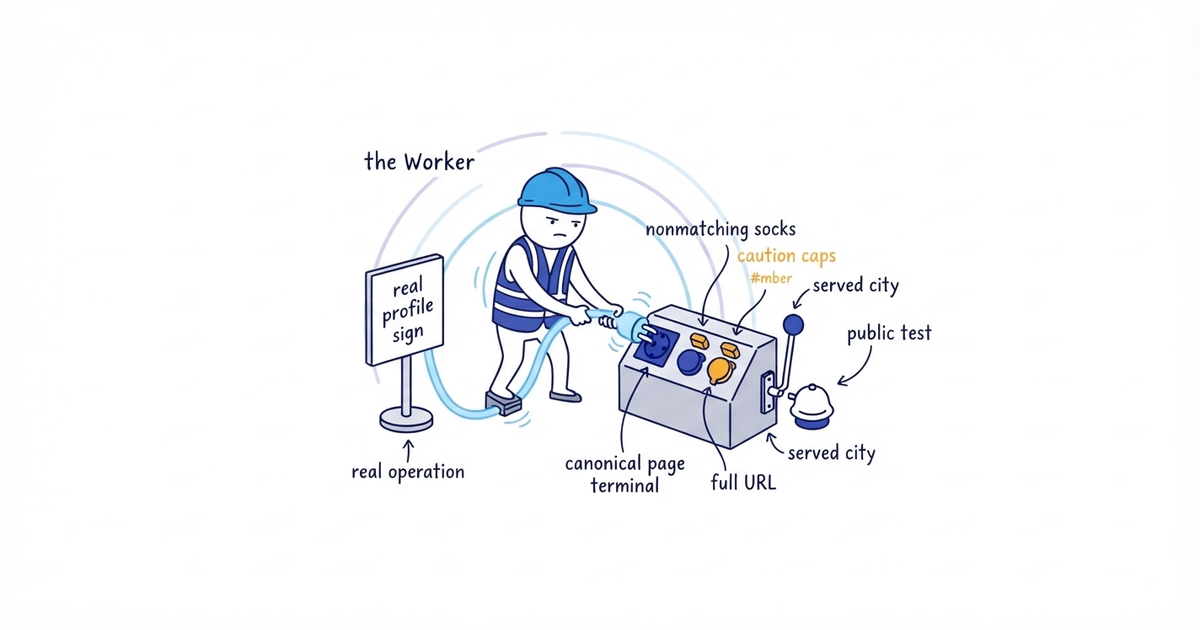
To connect your website to Google Business Profile, choose the page that represents the exact business or location on the Profile, test that page, and only then add its full URL to the Profile.
Use this decision:
| The Profile represents | Website destination |
|---|---|
| One service-area operation with one central Profile | The canonical homepage that represents the whole business |
| One single-location storefront or hybrid business | The page that clearly represents that location; for a single-location business, this is often the homepage |
| A genuine separately staffed location in a multi-location business | That location’s canonical page with its real address or coverage, contact path, and customer information |
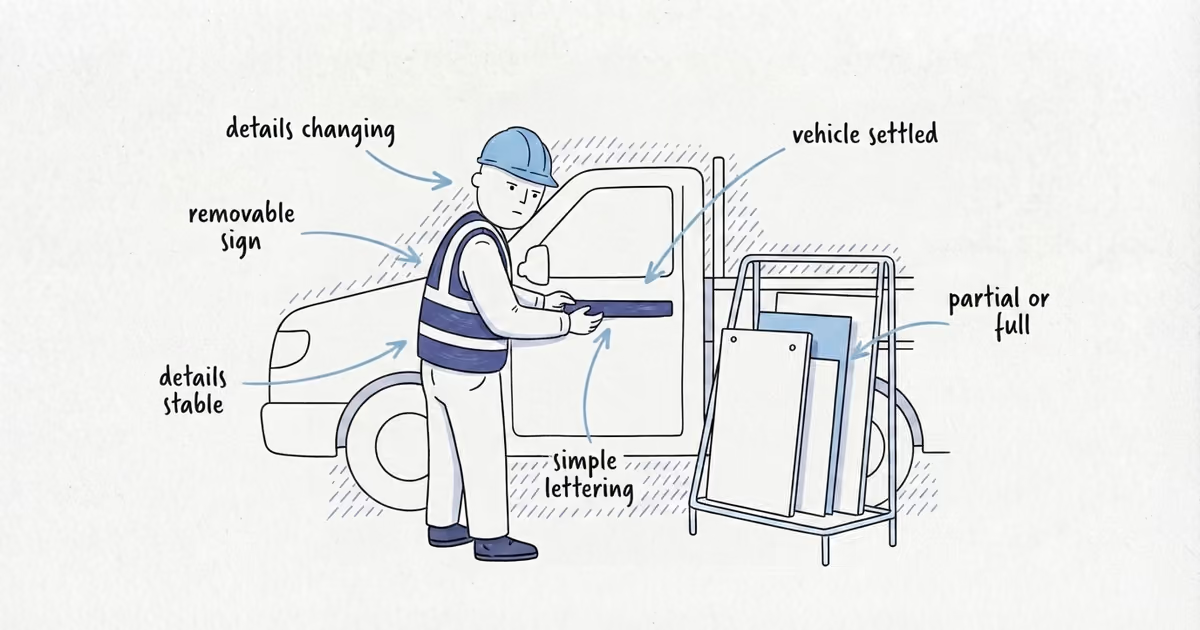
Do not point one central Profile to a different city page each time you want to target a new search. The website field is a customer destination, not a city-keyword switch.
Google says the website should represent the individual business location. It also warns against URLs that redirect or refer customers to a different landing page or business. A URL is not correct merely because it loads.
Last verified: August 12, 2026 (United States).
Your finished record should contain one approved URL per legitimate Profile, the status of the saved edit, and the destination reached through the public website button.
The examples use fictional Clearline Plumbing and example.com. Replace them with the business’s real Profiles and URLs.
1. Match each Profile to the real operation
Input: Your Profile list, access and verification status, public address or service-area setup, staffing, and real location list.
Action: Create one row per legitimate Profile:
Profile name | Real operation or location | Profile type | Access | Verified | Candidate URL | Approved URL | Edit status | Public-button destination | Tested by and dateLabel each row as one of these:
- Central service-area operation
- Single-location storefront or hybrid business
- Separately staffed location
Suppose Clearline Plumbing is based in Austin, travels to customers, and serves Austin, Round Rock, and Cedar Park. It has one central service-area Profile. That creates one worksheet row, not three.
Round Rock and Cedar Park can appear as accurate service areas. They do not justify extra Profiles or extra website-link decisions. Google’s current representation rules allow one Profile for a service-area business without a storefront. Separate service-business locations can have separate Profiles when they have separate staff and service areas.
Make sure you are signed in to the Google Account linked to the Profile. Google says some businesses need verification before they can edit information.
Output: A Profile inventory with one real operation or location assigned to every row.
Done when: No Profile exists solely to represent another city served, and you can edit every Profile in scope.
If this fails: Stop. Resolve access, verification, duplicate, or real-location questions before changing the website field. Do not edit a Profile whose owner is unclear. If the Profile is unclaimed, unverified, or incomplete and you need implementation help, ShiftFlow’s Google Business Profile setup can establish the correct owner, service-area model, services, and customer details before this website-link task continues.
2. Choose one canonical destination
Input: The Profile type plus the homepage, location pages, service pages, city pages, and their canonical URLs.
Action: Choose the page that answers this question:
If a customer clicks this Profile, which page most directly represents the business or exact location they selected?
For Clearline’s one central service-area Profile, choose:
https://www.example.com/The homepage represents the whole operation, its actual services, and its customer contact path.
Reject these alternatives:
https://www.example.com/round-rock-plumberbecause Round Rock is a service area, not a separate Clearline location or Profile.https://www.example.com/water-heater-repairbecause one service does not represent the full plumbing operation shown on the Profile.- A social page, URL shortener, lead seller, tracking-only domain, or page for another business.
The multi-location decision is different. If Clearline later opens a genuine Dallas location with its own staff, service area, eligible Profile, and canonical /locations/dallas page, connect that Dallas Profile to its Dallas page. A customer should not have to return to a generic location selector when the Profile already identified the branch.
Output: One candidate canonical URL per Profile.
Done when: The page identifies the same business and real operation or location the customer chose on Google.
If this fails: Return the worksheet row to website repair. Do not use an inaccurate city page as a temporary destination.
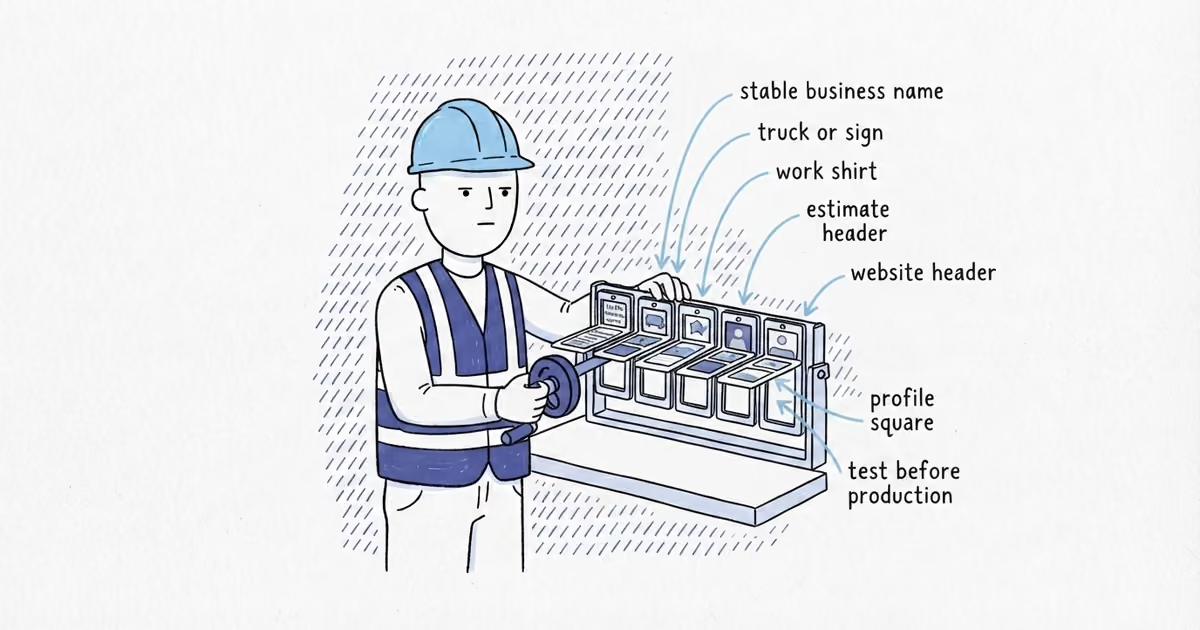
3. Test the page before editing Google
Input: The candidate full URL, a private mobile browser, basic page inspection, and the business’s normal call, form, or booking path.
Action: Open the candidate URL as a customer and complete this check:
[ ] Uses the business's real HTTPS domain
[ ] Opens without a login, error, or security warning
[ ] Does not run through an avoidable redirect chain
[ ] Finishes on the intended canonical business or location page
[ ] Is not blocked from Googlebot
[ ] Shows the same business name as the Profile
[ ] Shows matching address or service-area context
[ ] Uses the correct phone and customer action
[ ] Does not imply an office that does not exist
[ ] Phone, form, or booking path works on mobile
For Clearline, the homepage should identify Clearline Plumbing, explain its real service area without claiming a Round Rock office, and let a homeowner send the property address and job type. Test the action without creating a false customer enquiry.
Follow the URL through any redirect and record the browser’s final address. A clean redirect from an old canonical URL during a planned site migration can be repairable, but the Profile should use the current direct destination once known. Do not accept a route that hands the visitor to another business or generic referral page.
Google’s current Profile editing instructions also say to make sure Googlebot is not blocked from the website. Check the site’s crawl controls or ask the website owner to do so.
Output: A passed URL checklist and the exact full URL to enter.
Done when: The page works on mobile, matches the Profile, and sends the customer directly into the correct enquiry path.
If this fails: Fix blocked crawling, redirect loops, broken forms, stale contact details, or false location language on the website. Retest before touching the Profile.
4. Connect your website to Google Business Profile
Input: The approved full URL and a Google Account linked to the Profile.
Action on Google Search:
- Open your Business Profile while signed in to the linked account.
- Select Edit profile.
- Find Website in the business information.
- Enter the complete URL, including
https://. - Select Save.
For Clearline, enter:
https://www.example.com/Do not enter /round-rock-plumber into its one central Profile.
In the Google Maps mobile app, Google’s current top-level path is Business, then Edit profile. Find Website, enter the full URL, and save.
The exact arrangement can differ between Google Search, Google Maps, device, business category, and account. Use the current Edit profile business-information screen and locate Website rather than relying on an old screenshot or an assumed Contact tab.
Google reviews Profile edits before updating them publicly. Record the status you can see, such as saved, pending, accepted, or not approved. Do not promise the team that the public button will change in a fixed number of hours.
Output: A saved website edit and its current status.
Done when: The Website field contains the exact approved full URL and the edit has a visible saved or review status.
If this fails: If you cannot edit, resolve account access or verification. If your screen differs, remain in the current business-information editor and find the Website field. Do not submit a different page merely because the first accurate URL needs review.
5. Test the public website button
Input: The Profile after Google processes the edit, plus signed-out or non-manager mobile and desktop browsers.
Action: Find the public Profile as a customer. Select its website button and record:
Profile tested: _______________________________________________
URL saved in Website field: ___________________________________
Public button present: yes / no
Page initially requested: _____________________________________
Final URL after redirects: ____________________________________
Correct business or location page: yes / no
Mobile contact path passed: yes / no
Tested by and date: ___________________________________________
Do not rely on the manager screen. The task is complete only after the public button opens the approved page for someone who is not managing the Profile.
For Clearline, the button should open the canonical homepage. The business name, coverage, phone, and enquiry route should still match the central Austin-based service-area operation.
If the edit is pending, wait for that status to resolve and check again. If it is not approved, recheck that the URL is complete, working, controlled by the business, accessible to Googlebot, and representative of the exact business or location. If the button loads an unexpected page, compare the saved URL with the browser’s final URL and repair the server, CMS, domain, or tracking redirect responsible.
Output: A customer-view verification record.
Done when: The public button is present, reaches the approved destination, and the mobile customer action works.
If this fails: Correct the saved field or the website behavior and repeat the public test. Do not rotate to an unrelated service or city page while an edit is unresolved.
6. Record ownership and separate measurement
Input: The verified destination, public test result, an internal owner, and any approved analytics setup.
Action: Complete the worksheet row. Record who changes the Profile link when the business moves domains, replaces a canonical page, closes a location, or changes which page represents it.
If you want to distinguish visits from the Profile, add measurement only after the underlying destination has passed. Follow the separate Google Business Profile lead-tracking procedure for consistent UTM parameters, analytics checks, call records, and booked-job tracking.
Tracking parameters may label the visit; they do not change which business or location the URL must represent. If the current destination already contains query parameters or runs through redirects, do not hand-build another query string. Keep the approved clean URL until the tracking version can be generated and tested.
Google Business Profile Performance defines website clicks as clicks on the Profile’s website link. That count does not prove that the page loaded, the visitor contacted the business, or a job was booked. Those are measurement tasks after the connection works.
Output: A completed Profile-to-URL record and, when needed, a separate tracking handoff.
Done when: The business knows which page each Profile links to, why the destination is correct, when the public button was tested, and who owns future changes.
If this fails: Leave the accurate clean URL in place. Do not weaken the customer destination to force an analytics setup.
Final pass or stop decision
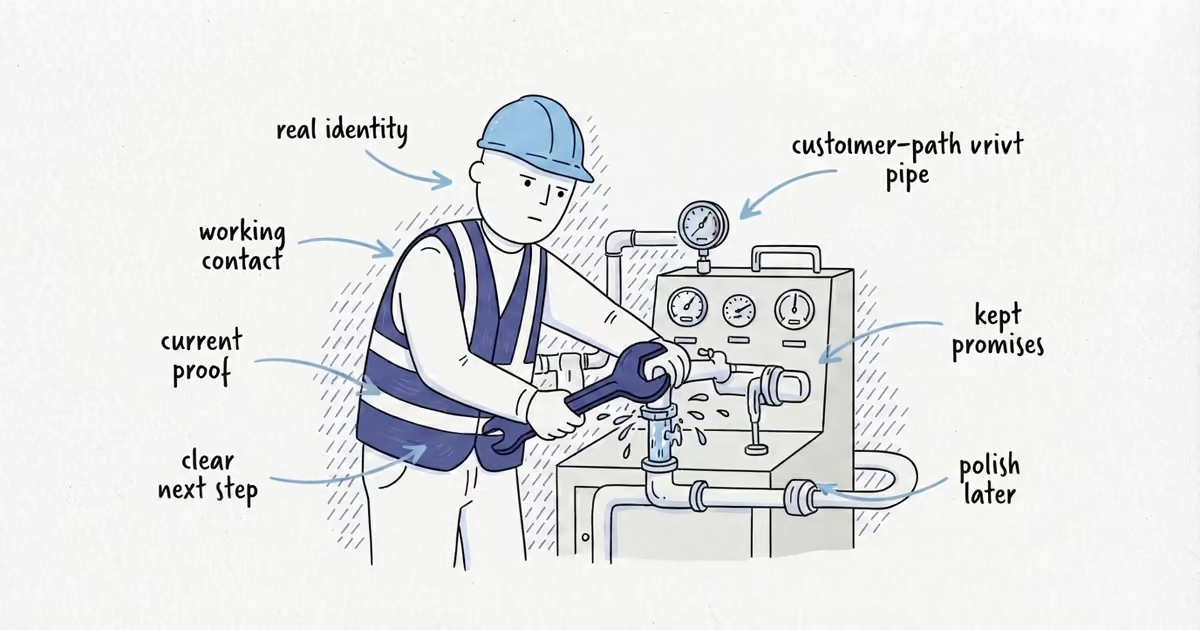
Mark the connection pass when:
- Every Profile maps to one real business operation or separately staffed location.
- The selected URL is the correct canonical customer destination, not a page chosen only for its city or service keywords.
- The page passes the HTTPS, Googlebot, identity, location, redirect, mobile, and contact checks.
- The exact full URL is saved in the correct Profile.
- A signed-out or non-manager test reaches the intended page through the public website button.
- The destination and test owner are recorded.
Mark it stop when access is missing, the Profile’s real-world owner is unresolved, or no current page represents the Profile accurately. Fix that prerequisite instead of connecting an inaccurate URL.
Frequently asked questions
Should Google Business Profile link to my homepage or a city page?
Use the page that represents the exact operation or location on the Profile. A central service-area Profile usually links to the canonical homepage; a genuine separately staffed location should link to that location’s canonical page, not a city page created only for search terms.
Can I use a UTM-tagged website URL in Google Business Profile?
Yes, after the clean canonical destination passes the identity, redirect, crawl, and mobile tests. Generate and test the tagged URL consistently; tracking parameters must not change which business or location the destination represents.
Why is my Google Business Profile website edit pending or rejected?
Google reviews Profile edits and does not promise a fixed approval time. Recheck access and verification, then confirm the URL is complete, working, controlled by the business, accessible to Googlebot, and representative of the exact business or location before resubmitting.
Sources
- google-business-profile
- website-link
- canonical-url
- service-area-business
- local-seo