How Do I Track Website Calls and Form Submissions?
Track website calls and form submissions from click to accepted contact, qualified lead, estimate, won job, and revenue without sending PII to analytics.
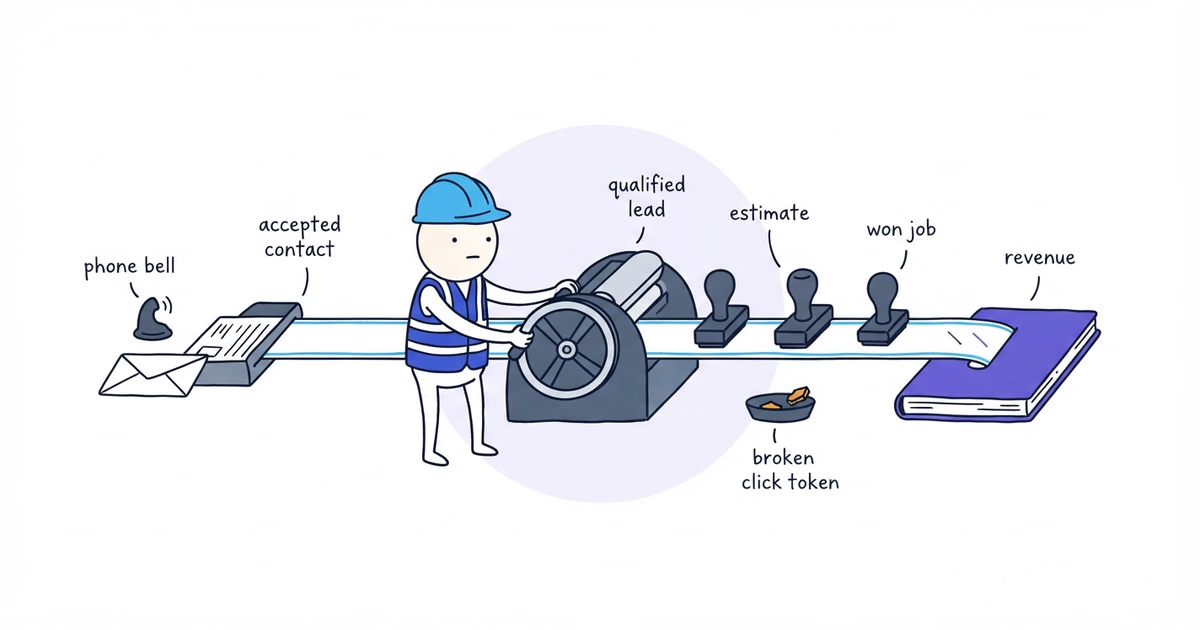
Track website calls and forms through the full business chain:
CTA click
→ connected call or accepted form
→ qualified lead
→ estimate or appointment
→ won job
→ revenue
Each arrow is a separate stage. A phone-link click is not a connected call; a form start is not a submission; and a submission is not automatically a qualified lead or won job.
Record source and action in analytics or a call/form system. Record later outcomes and the stable lead ID in the CRM, job system, or ledger, then reconcile inside the business system.
Last verified: August 13, 2026 (United States).
Build a Website Call and Form Tracking Ledger
Create one spreadsheet row for each accepted call or form. Use these columns:
Lead ID
Received date and time
Website source status: Confirmed / Reported / Unknown
Source, campaign, and landing page when available
Contact channel: Call / Form
Accepted contact: Yes / No
Qualified lead: Yes / No / Pending
Estimate or appointment: Date / No / Pending
Won job: Yes / No / Pending
Revenue under [chosen rule]
Record owner
Data issue
Gather Website Tracking Inputs
Gather contact paths, receiving systems, analytics, source fields, stage rules, and a labeled test contact.
Start With Minimum Website Call and Form Tracking
If the business has only a website form, an email inbox, a phone log, and a spreadsheet, begin here:
- Create the ledger with the columns above.
- Give every accepted inquiry a sequential business-system ID, such as
LF-2026-0001. Keep that ID out of Google Analytics and public URLs. - For a form, create the row only after the destination inbox or system receives it. Record Website as the channel; record the landing page or campaign only when the form or approved analytics setup actually supplies it.
- For a call, create the row from the business phone log after applying the written connection rule. Mark the website source Confirmed only when a dedicated website number or working attribution system proves it. Use Reported when the caller states the source and Unknown when it cannot be established.
- Assign one team member to update later outcomes on the same row.
- Every Friday, count accepted contacts, qualified leads, estimates or appointments, won jobs, and revenue separately.
This lacks session-level call attribution but stops clicks, unreceived forms, and unanswered calls from becoming leads.
Step 1. Define Every Website Lead-Tracking Stage
Write one rule for each stage before creating events or reports:
| Stage | Working definition |
|---|---|
| CTA click | A visitor selects a tracked call, form, booking, chat, or text action |
| Connected call | The phone system records a call that meets the business’s documented connection rule |
| Accepted form | The website accepts the valid form and the destination system creates or receives it |
| Qualified lead | The inquiry meets the business’s documented service, customer, and area criteria |
| Estimate/appointment | The relevant estimate or appointment is created under the business’s normal rule |
| Won job | The customer accepts and the job reaches the business’s documented won status |
| Revenue | The amount counted under one stated rule, such as invoiced or collected revenue |
For Northside, a qualified lead starts with a Dallas or Irving homeowner requesting an offered service, plus
[verified exclusions]. It must still define estimate, won-job, and revenue statuses. Do not mix quoted, invoiced, and
collected value.
Step 2. Inventory Every Website Intake Path
Map each website action to its destination:
Page and placement:
Visible action:
Technical action or number:
Destination system:
Owner:
Current measurement: None / Click / Start / Submit / Accepted call or form
For Northside, make separate records for the homepage phone link, drain-clearing request form, and each booking or messaging handoff.
Find duplicate numbers, old inboxes, forms that bypass the CRM, and embeds with separate reports. Keep the contact path working while fixing attribution.
Step 3. Track Accepted Form Submissions
Google Analytics enhanced measurement can collect form_start on first form interaction and form_submit on submit.
Those events do not prove the inbox or CRM accepted the request.
- Name the form, such as
service_request. - Track starts only when the team will use abandonment data.
- Confirm submission after valid behavior, not a button click.
- Verify website success and receipt in
[destination system]. - Give the accepted record a lead ID.
- Separate spam, validation, duplicate, and delivery failures.
If “Thank you” appears but the request never arrives, mark Accepted contact: No and open a delivery issue.
Step 4. Choose a Call-Tracking Maturity Level
Use the simplest level that answers the current business question.
Level 1 Operational Call Ledger
Use the minimum spreadsheet setup above.
Level 2 Phone-System Records
Import the inbound number, time, connection outcome, and receiver, then join the call to a business-system lead ID.
Define “connected”; a ring, voicemail, answer, and qualified conversation are different outcomes.
Level 3 Source or Dynamic Attribution
Use source-specific numbers or dynamic number insertion when campaign or session attribution justifies the maintenance. Google Ads currently supports US website call measurement with forwarding numbers for applicable configurations.
Before launch, verify:
- the fallback number is correct and callable on mobile;
- the attribution setup fits traffic and joins to the CRM;
- call recording receives appropriate review where used;
- organic, direct, and paid tests replace numbers correctly.
Step 5. Capture Lead Source Without Sending PII to Analytics
Preserve landing page, source/referrer, UTM values, website action, timestamp, a permitted analytics reference, and the lead ID in the business system.
Google prohibits sending personally identifiable information to Analytics. Keep names, emails, phone numbers, addresses, messages, and files out of event data, URLs, parameters, page titles, and campaigns.
Keep names, contact details, and the CRM or ledger ID in the business system. Analytics receives only the non-PII event, source data, and a permitted session or event reference. Join records in the business system, not by sending an identity or CRM ID to Google Analytics. This rule alone does not establish full privacy compliance.
Step 6. Join Each Website Lead to a Job
Create the lead ID when the phone or form record is accepted. Keep the analytics reference and business ID separate:
Analytics: [permitted non-PII event/source reference]
→ business reconciliation record: [permitted reference] matched to LF-2026-0017
→ accepted form or call record: LF-2026-0017
→ qualified lead: LF-2026-0017
→ estimate/appointment: LF-2026-0017
→ job: LF-2026-0017
→ revenue under [rule]: LF-2026-0017
The CRM, phone integration, or ledger can generate it. If systems cannot share it, reconcile with permitted fields such as intake time. Mark uncertain matches Unresolved.
Apply one rule to duplicates, reopened jobs, and repeat contacts.
Step 7. Test Website Form and Call Tracking End to End
Label test details and tell the receiving team first.
Form test
- Open a tagged, non-PII test URL signed out on a phone.
- Verify any expected
form_start. - Create one validation error and confirm it is not accepted.
- Correct and submit; verify confirmation and
form_submitbehavior. - Verify
[system]receipt and assign a lead ID. - Complete the test ledger row, then exclude it under the documented rule.
Call test
- Open the page through the test source and confirm the displayed number.
- Call and let
[role]answer under the test procedure. - Verify click, call, connection, and source as separate facts.
- Reconcile the lead ID and complete the ledger row.
- Exclude the test under the documented rule.
Step 8. Review the Weekly Website Lead Report
Use the ledger to answer:
| Question | Measure |
|---|---|
| Are website contact paths functioning? | Accepted calls/forms and delivery failures |
| Are inquiries relevant? | Qualified leads ÷ accepted contacts |
| Does the team move qualified leads forward? | Estimates or appointments ÷ qualified leads |
| Does the business win the work? | Won jobs ÷ estimates or appointments, under the set rule |
| Which source produces business results? | Qualified leads, won jobs, and revenue by source |
| Can the report be trusted? | Unresolved joins, duplicates, missing stages, and tests |
Show counts, numerator, denominator, and period beside each rate.
Calculate the rates only when the denominator is greater than zero:
Qualification rate = Qualified leads ÷ Accepted contacts
Estimate/appointment rate = Estimates or appointments ÷ Qualified leads
Win rate = Won jobs ÷ Estimates or appointments
Once website-originated leads reconcile correctly, the Google Profile lead-tracking guide helps extend the same outcome discipline to Google search terms, profile actions, qualified leads, and jobs.
See a Completed Website Lead-Tracking Record
This is a hypothetical example, not a real Northside result:
Business-system lead ID: LF-2026-0001
Received: August 13, 10:15 a.m.
Website source status: Confirmed
Source and landing page: Organic search, drain-clearing page
Contact channel: Form
Accepted contact: Yes — request appeared in the intake inbox
Qualified lead: Yes — Dallas homeowner requesting an offered service
Estimate or appointment: August 14
Won job: Pending
Revenue: Pending under [Northside's chosen rule]
Owner: [role]
Data issue: None
A call can have Website source status: Unknown while still recording its connection and job outcome honestly.
Website Call and Form Tracking Checklist
The first setup is complete when:
- stages are defined and paths have destinations, owners, and measurement states;
- accepted forms and calls are distinguished from clicks and failures;
- calls with unproven website origin remain Unknown;
- useful source context is captured without sending PII to Google Analytics;
- the business system, not Google Analytics, holds the lead ID used to join contact and job records;
- form and call tests pass and are excluded under a documented rule;
- the weekly report includes counts, rates, sources, outcomes, and data exceptions.
Stop adding tracking when the report connects website contacts to qualified leads, estimates or appointments, won jobs, and revenue with known data gaps. Add attribution only when a business decision requires it.
Frequently Asked Questions About Website Call and Form Tracking
Do I need call recording to track website calls?
No. A phone-system record or operating ledger can track the inbound number, time, connection outcome, source confidence, lead ID, and later job result without recording the conversation. If the business records calls, review the applicable notice, consent, access, and retention requirements separately.
Can I track website calls without changing my business number?
Yes, for connection and business outcomes: use the existing phone records and mark the website source Reported or Unknown when it cannot be proved. Precise campaign or session attribution may require a compatible managed setup, but it should retain a correct fallback number and pass real calls before launch.
Sources
- contractor-website
- website-call-tracking
- form-submission-tracking
- lead-attribution
- contractor