How Do I Claim a Google Business Profile I Don't Control?
Recover the correct Google Business Profile without creating a duplicate. Identify its ownership state, choose the right claim or access path, and secure durable business-controlled ownership.
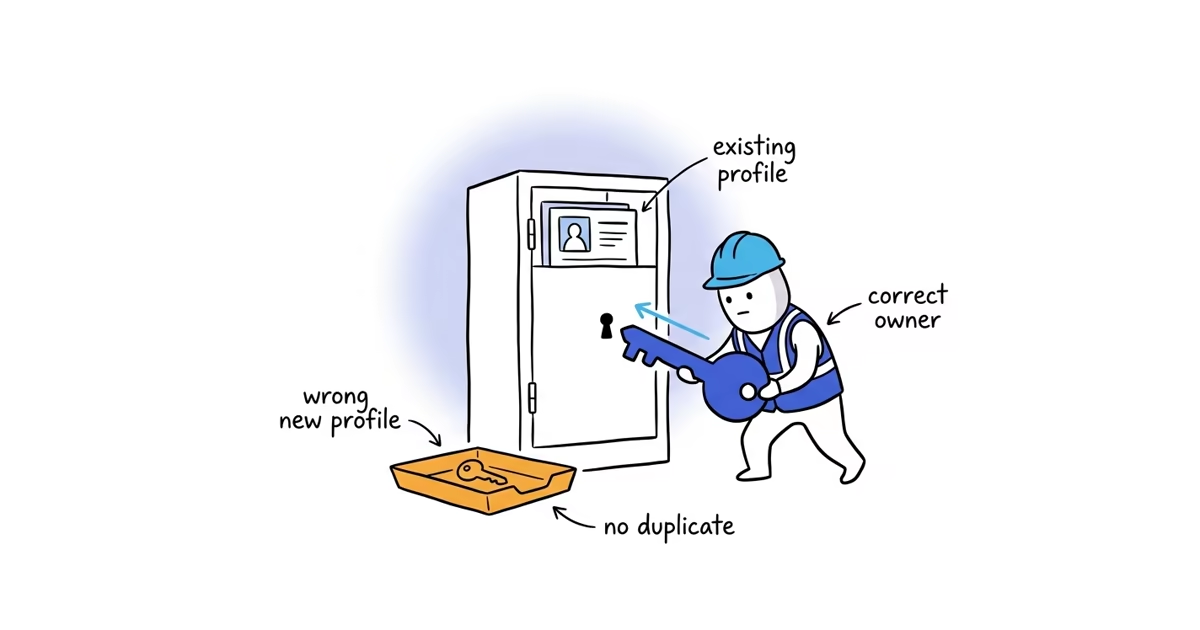
If the profile is unverified, claim it directly. If it is verified under another account, the correct action depends on who controls it: ask a known owner to invite the business account, request access from an unknown owner, or contact Google for a service-area ownership transfer.
Do not create a new profile just because you cannot manage the existing one. A duplicate can split control, confuse customers, and leave you with another problem to clean up.
If your search finds no existing profile at all, use the home-service setup guide so you create one accurate listing instead of filing an ownership request for a different business.
Check who owns the Google Business Profile
Before assuming an employee, agency, or stranger owns the profile, sign in to every plausible Google Account controlled by the business. Search the exact business name and city on Google Search, then check Google Maps.
If one account shows management controls, keep using that account. Google notes that when Claim this business or Own this business? is missing, one possible explanation is that you are already signed in as an owner.
If an old business account owns the profile but you cannot sign in, try Google’s account-recovery process before requesting ownership from yourself. Do not create another profile to bypass a forgotten password.
Choose a claim, access request, or ownership transfer
Claim and Request Access are not the same thing. Claiming takes control of an unverified profile. Requesting access asks the current verified owner to share or transfer control.
| What you see or know | Start here |
|---|---|
| Claim this business or Own this business? | Claim the existing unverified profile |
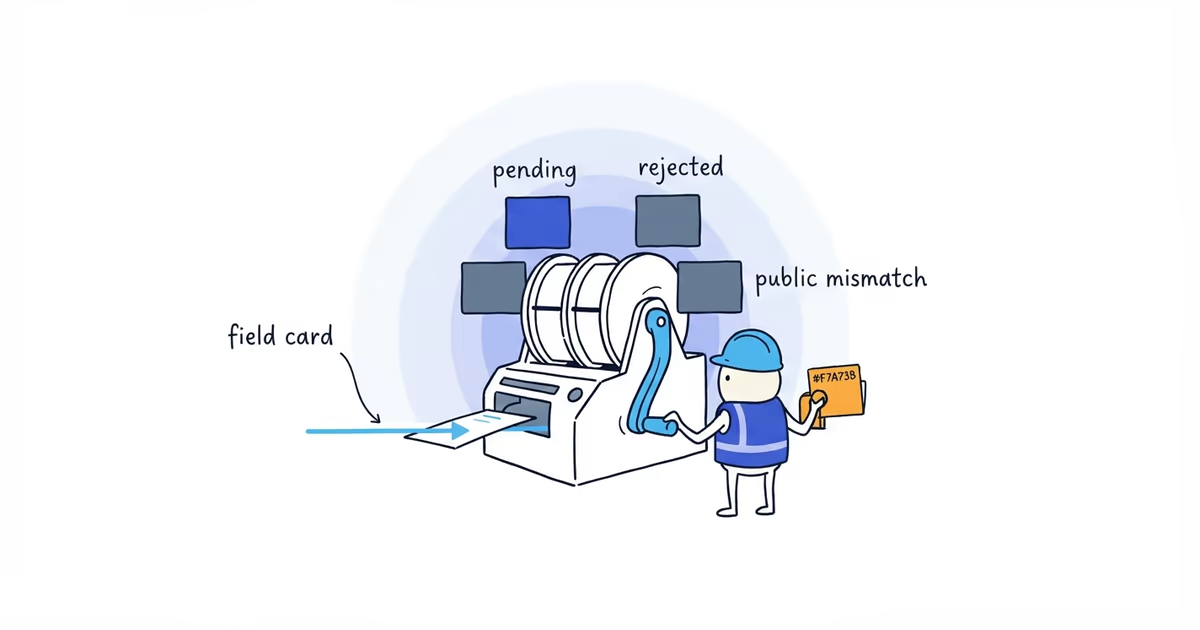
| Someone else may manage this Business Profile on a storefront or hybrid profile | Submit Request Access; the current owner has three days to respond |
| A known former employee, agency, or previous owner controls it | Ask that person to invite the business-controlled account as an owner |
| The business owns the Google Account but cannot open it | Recover that Google Account |
| Someone else controls a service-area profile with no public shop or office | Contact Google Business Profile support and request a listing ownership transfer |
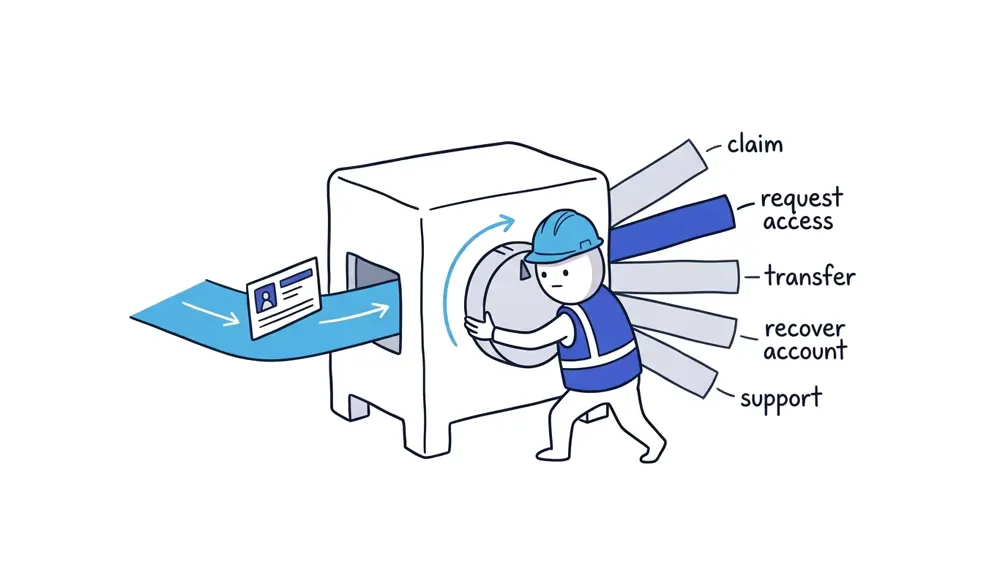
Use the row that matches the profile now. Do not start every recovery attempt with the same form.
How to claim an unverified Google Business Profile
If the profile shows Claim this business or Own this business?, it has not been verified by another owner.
Open the correct profile in Google Maps, select Claim this business, then Manage now. Follow the prompts until Google offers a verification method.
Stop there and prepare for the method shown. Claiming connects the existing profile to the account; verification proves that the business is authorized to manage it. Once Google offers a method, follow the verification guide so the video, postcard, phone, or email evidence matches the prompt.
How to transfer Google Business Profile ownership
When you know who controls the profile, direct cooperation is usually the cleanest path. This applies to a former employee, marketing agency, previous business owner, or another team member who set it up from the wrong account.
Ask the current owner to:
- Open the Business Profile.
- Go to More, then Business Profile settings and People and access.
- Invite the business-controlled Google Account as an Owner.
- After Google’s new-owner restriction has passed, select that account and transfer Primary owner access to it.
Only the current primary owner can transfer primary ownership. Google also limits some actions for a newly added owner or manager during the first seven days. During that period, the new user may be unable to remove other users or make anyone the primary owner.
That seven-day restriction is not the response time for an ownership request. It applies after a user has been added.
Keep the existing profile during the transfer. A proper primary-owner transfer preserves its business information and reviews.
How to request access to a Google Business Profile
For a storefront or hybrid business:
- Go to business.google.com/add.
- Enter the business name and address.
- Select the correct business from the results.
- When Google says Someone else may manage this Business Profile, select Request Access.
- Complete and submit the form.
- Keep the confirmation email. Its link lets you check the request and may provide the next action.
The current owner has three days to respond.
If the request is approved
Google sends an approval email and the requested account can manage the profile. Check the assigned role; access is not fully secured until the appropriate business-controlled account holds ownership and, where intended, primary ownership.
If the request is denied
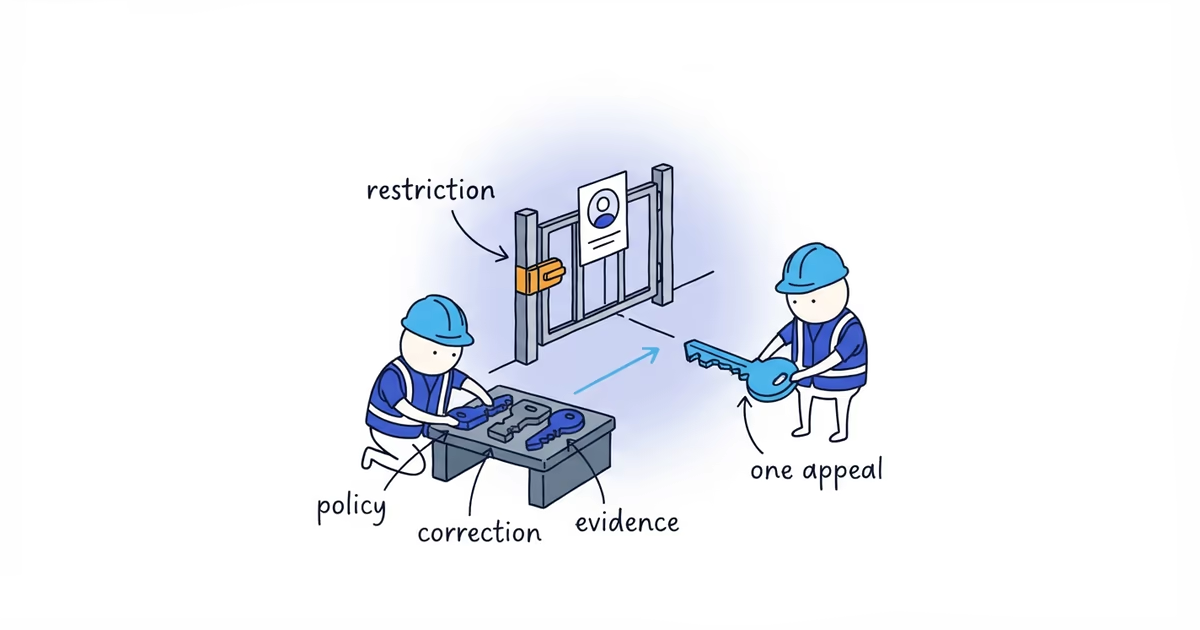
Google sends a rejection email. The official workflow may let you suggest an edit or appeal the decision. Use the action in Google’s message and keep your evidence consistent with the real business.
If the dispute involves a contested business sale, partnership, trademark, or other legal ownership issue, the ordinary profile workflow may not resolve the underlying dispute. Do not treat this article as legal advice.
If there is no response
After three days, Google may offer a way to claim and verify the profile. Open the confirmation email and look for View request, then Verify. You can also sign in to the Business Profile and look for a Claim or Verify button.
That option is not guaranteed. No response does not automatically transfer the profile. If Google does not show a next action, use the support or appeal route available in the request.
How to recover service-area Business Profile ownership
Google gives service-area businesses without a public shop or office a different route. Contact Google Business Profile support rather than forcing the storefront request steps to fit.
In the support form:
- Enter
Transfer ownership of listingin Tell us what we can help with. - Select Transfer ownership of listing as the issue description.
- Follow the evidence and contact steps Google provides.
This exception concerns ownership recovery. It does not change the service-area address or verification rules.
If the owner cannot identify the current account or wants help with Google’s access process, ShiftFlow’s Google Business Profile setup can locate the correct profile, work through the claim or ownership request, and keep the business account as owner.
What proof may Google request for an ownership claim?
Google does not publish one document checklist that guarantees an ownership transfer. It decides what a particular case needs. If Google asks for proof, records that consistently connect the requester, business name, and real operation may include:
- Business registration or license
- Address or utility records tied to the operation
- A company-domain email account
- Branded vehicle, tools, workspace, or signage
- Invoices or other current operating records
Do not send this entire list by default. Show only what Google requests, and avoid exposing unrelated sensitive information. No single license, bill, photo, or email guarantees recovery. The purpose is to answer Google’s request with consistent evidence, not to overwhelm support with files.
How to secure Google Business Profile access
A Business Profile can have several owners but only one primary owner. Owners can add and remove users; managers cannot.
Use that difference deliberately:
- Make a durable business-controlled account the primary owner.
- Add an appropriate business-controlled backup owner so one lost login does not lock out the business.
- Give an outside agency or contractor manager access when it does not need authority to add or remove users.
- Remove obsolete access only after the business has secure control and Google’s seven-day new-user restriction allows the change.
Do not leave the departing employee or agency as primary owner while assuming an invitation solved the problem.
Confirm the business controls the Google Business Profile
- The business-controlled account can manage the correct existing profile.
- That account has the intended owner or primary-owner role.
- A suitable business backup owner exists.
- Unneeded former-employee, agency, or previous-owner access has been removed when permitted.
- No duplicate profile was created during recovery.
- If Google now asks for verification, the next task is the verification guide rather than more ownership changes.
Frequently asked questions
How long does a Google Business Profile ownership request take?
Google gives the current owner three days to respond. That is a response window, not a guaranteed recovery time. Verification, an appeal, or support may still be required after those three days.
Will an ownership transfer remove the profile’s reviews?
No. A proper ownership transfer keeps the existing Business Profile, including its business information and reviews. Creating a replacement profile is what introduces duplicate and review-splitting risk.
What if my Google Business Profile ownership request is denied?
Open Google’s denial email and use the edit or appeal action it provides. Keep any evidence consistent with the real business. A disputed sale, partnership, or other legal ownership issue may need to be resolved outside the profile workflow.
Sources
- google-business-profile
- profile-ownership
- request-access
- account-recovery
- local-seo