How Do I Verify a Google Business Profile?
Verify a Google Business Profile with the method Google offers. Prepare evidence for location, business existence, and management authority, then diagnose and repair a rejected submission.
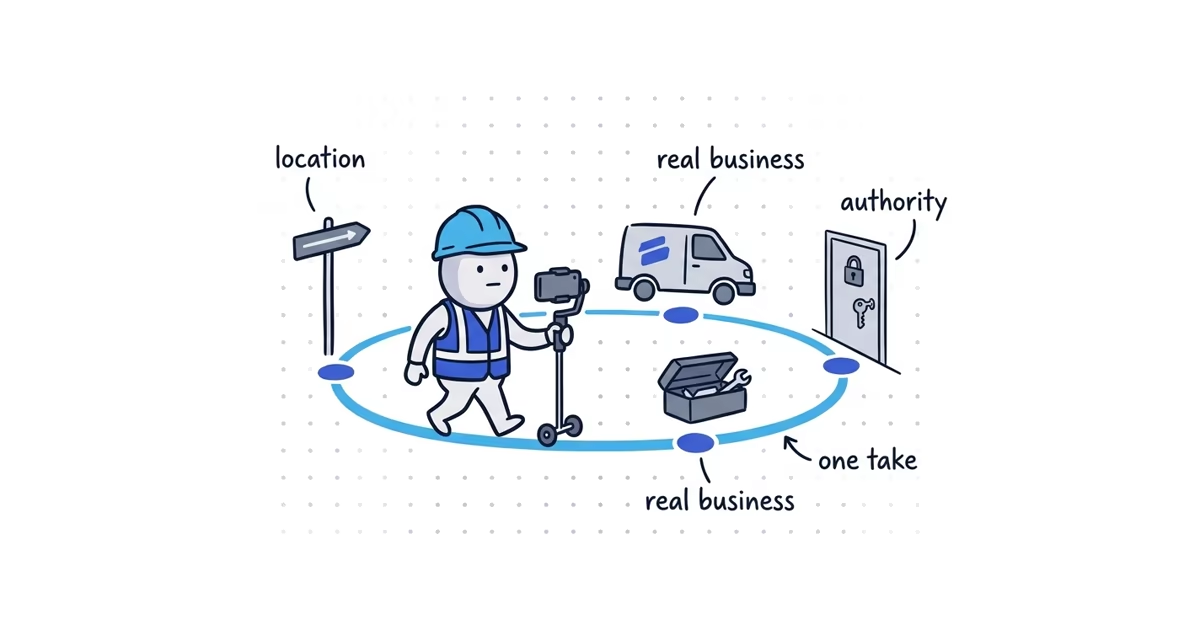
Use the verification method shown on your Business Profile. Google automatically determines which methods are available and may require more than one. You cannot freely switch to phone, postcard, or another method that Google has not offered.
Verification is an evidence check. Google needs to confirm that the business operates where it says it does and that the person completing the process is authorized to manage it.
Which Google Business Profile verification method should you use?
- Video recording: Record and upload one continuous video through the Business Profile. Prepare location markers, business equipment, and keys or other controlled access before starting.
- Phone or SMS: Receive a code at the business number shown. Make sure you can answer that number; an automated IVR system cannot receive the code.
- Email: Follow the instructions sent to the exact email address shown on the verification screen.
- Live video call: Join a real-time call with a support representative while at the business during its hours. Have location, equipment, and management proof ready.
- Postcard: Receive a code at the business address. Check the mailing address first, and avoid changing the name, address, or category while waiting.
A recorded video and a live video call are different. The recording is captured and uploaded through the profile; the live call happens in real time with a support representative.
If Google offers phone, SMS, or email, follow that prompt and enter the code or complete the instructions it sends. If it offers a live call, prepare the same three proof goals described below and show them to the representative in real time. The rest of this guide focuses on recorded video because it requires the most preparation. Postcard rules appear after the video steps.
If Google asks for a video recording, do not press record until the route and evidence are ready.
Google Business Profile video verification requirements
Google requires the video to be:
- Captured live through the Business Profile; pre-recorded or offline uploads are not allowed
- Recorded and uploaded from a mobile device
- Unique, unedited, complete, and continuous, with no breaks
- At least 30 seconds long
Do not pause, stitch clips together, add text, or trim the recording. If the route does not work, discard it and record a new complete take.
Keep other people out of the frame. Do not show bank account numbers, tax numbers, identification numbers, customer details, or other private information. If a document is useful, frame only the business name and the minimum non-sensitive detail needed to connect it to the operation.
What to show in a Google Business Profile verification video
Every useful shot should establish one of these points:
- Operating location: The business is based at or operates from the location attached to the profile.
- Business existence: The tools, equipment, signs, products, or workspace match the work described on the profile.
- Management authority: The person recording can access something the public cannot, such as a business vehicle, storage area, workspace, register, or operating document.
A pile of tools may prove that the work exists but say nothing about location. A street sign may prove location but say nothing about the business. A strong video covers all three in one route.
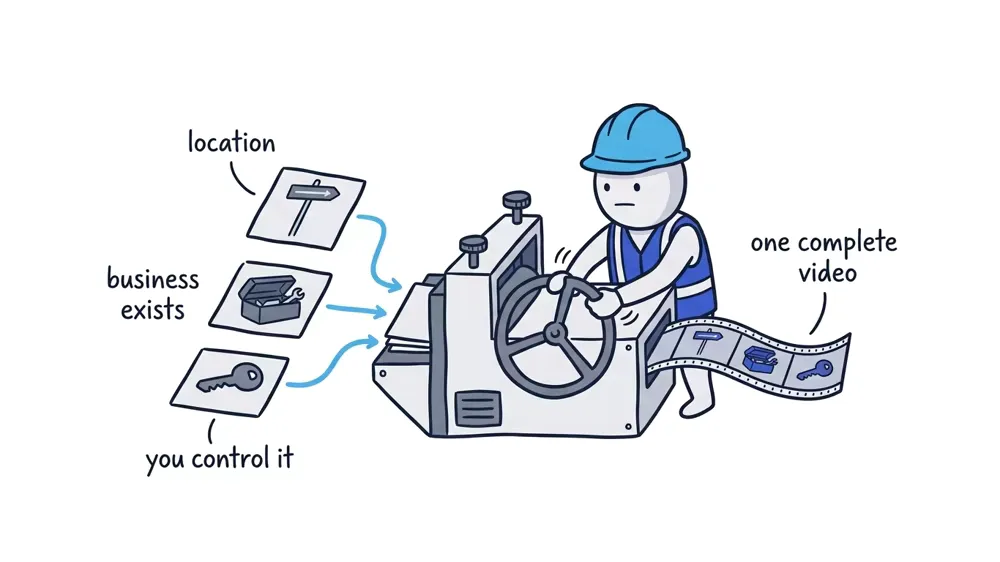
Verification does not make an ineligible location acceptable. A video cannot turn a P.O. box, remote mailbox, fake storefront, or unstaffed virtual office into a real operating location.
If a home address should stay private, check the service-area setup guide before recording so the location model and customer-facing address are correct.
Storefront and service-area video verification evidence
Storefront or hybrid business
A storefront serves customers at its address. A hybrid business serves customers there and also travels to them.
Show:
- A street sign, building number, nearby business, or familiar landmark that places the business at the profile location
- Permanent on-site signage with the same business name used on the profile
- The customer-facing premises or showroom
- Management access, such as unlocking an employee-only room, opening a register, or using an internal operating system
If there is no permanent signage and customers are not served there during the listed hours, do not try to make the video look like a storefront. Correct the business type and use the service-area evidence path.
Service-area business
A service-area business travels to customers and does not serve them at its operating address.
Show:
- Street signs, building numbers, or recognizable landmarks around the real operating address
- Professional tools, equipment, products, workspace, business cards, or branded work clothing
- Management access, such as unlocking a branded vehicle, equipment store, workshop, or business-only storage area
- A permit, invoice, or utility bill matching the profile name only when it can be shown without exposing sensitive details
A home-based service business can film signs and landmarks in the immediate neighborhood to establish location. That does not require displaying the home address publicly on Search or Maps. Public address visibility is a separate profile setting.
How to record a Google Business Profile verification video
Stage the route before opening the verification flow. Put the keys in your pocket, lay out the relevant tools, move sensitive paperwork out of view, and check that no customers or neighbors will appear.
Then record in this order:
- Start with the area. Show a nearby street sign, building number, landmark, or neighboring business that places you near the operating location.
- Move to the operation. Walk to the storefront, workspace, storage area, or branded work vehicle without stopping the recording.
- Demonstrate controlled access. Unlock the vehicle, gated equipment area, employee-only room, workshop, or storage space.
- Show the work. Film the professional tools and equipment that match the business category.
- Add safe business proof if needed. End on permanent signage or a document that shows the matching business name without revealing private numbers or customer information.
The route is a preparation tool, not a guaranteed approval formula. Replace the middle shots with evidence that fits the actual business.
Adapt the middle of the route to the work the business actually performs:
- Plumber: Show pipe tools, an inspection camera, fittings, or a drain machine; unlock the branded service van or secured tool storage.
- Cleaner: Show a commercial vacuum, labeled supplies, floor equipment, or a work kit; unlock the supply store or business vehicle.
- Landscaper: Show mowers, trimmers, a blower, trailer, or safety equipment; unlock the trailer or equipment yard.
- HVAC contractor: Show gauges, recovery equipment, a vacuum pump, or stocked parts; open the secured service vehicle or workshop.
- Electrician: Show testers, labeled tool cases, conduit tools, or safety gear; unlock the work van or controlled equipment area.
Do not borrow equipment or stage a location the business does not use. The shots must represent the real operation.
How to submit a Google Business Profile verification video
On the mobile device used for recording:
- Open the Business Profile.
- Tap Get verified.
- Choose Business video if that is the option shown, then tap Next.
- Allow location, camera, and microphone access when requested.
- Tap Start recording and follow the prepared route without a break.
- Review the take. Use Try again if it missed required proof.
- Tap Upload video when the complete take is ready.
After the required verification steps are complete, Google’s review can take up to five business days. This includes video review, although some profiles verify instantly.
Do not judge success by one supposed blue checkmark or dashboard label. Look for Google’s confirmation and confirm that the profile no longer asks for verification when the owner signs in and manages it.
How Google Business Profile postcard verification works
Postcard timing is separate from review timing. Google says most codes arrive within 14 days, and the code expires after 30 days.
While waiting:
- Do not edit the business name, address, or category; those edits can make the mailed code stop working.
- Do not request another code unless the current process tells you to. A new request invalidates the code already in the mail.
- Keep the code private. Google says it will not ask you to share the code, including with someone who manages the profile.
Enter the code on the Business Profile when it arrives, then allow for Google’s review.
Why Google Business Profile video verification gets rejected
If the video is not accepted, open the profile on the mobile device and tap Review issues. Google will identify what the recording failed to establish.
| Issue shown | What the new video should add |
|---|---|
| No nearby area shown | Operating location: Clear street signs, a building number, or a recognizable nearby landmark at the real base |
| Business name not visible on storefront | Business existence: A permanent sign on the building, wall, window, or signboard matching the profile name |
| Business equipment not shown | Business existence: Professional tools, equipment, products, workspace, or branded work materials used for the stated service |
| Proof of authorization missing | Management authority: Continuous footage of unlocking or accessing a business-only vehicle, room, storage area, register, or safely framed operating document |
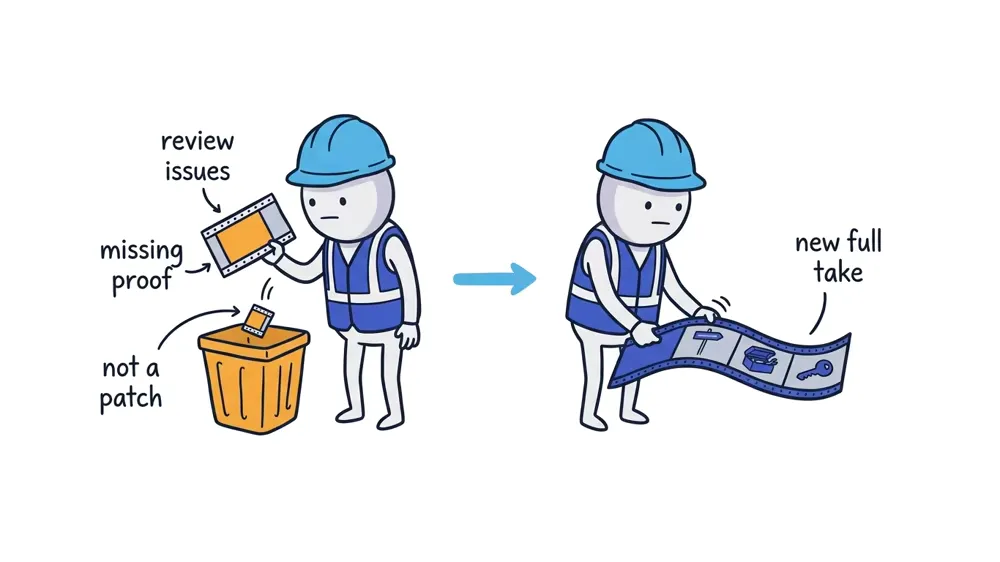
Record a completely new video. Include the valid evidence from the first attempt as well as the missing proof. Do not edit the rejected recording or submit a short patch clip.
Why Google Business Profile asks you to verify again
If Get verified appears again, Google could not fully verify the business. Follow the options now shown on the profile; they may differ from the first attempt.
Google may also request more information after important business details change. Select Get verified and complete the requested re-verification. If the offered method repeatedly fails or no usable option remains, contact Google Business Profile support with the exact error and the steps already completed.
If the offered method keeps failing and you want help checking the core setup, preparing the business evidence, and handling Google’s follow-up, ShiftFlow’s Google Business Profile setup supports the verification process while the business keeps ownership.
How to check Google Business Profile verification status
Do not leave the process in an ambiguous state. The profile should now show one of three outcomes:
- Under review: The offered verification steps are complete, and Google is reviewing the submission.
- Verified: The signed-in owner can manage the profile without another verification prompt. Continue with the post-verification checklist so the public phone, website, services, photos, and review path are ready for customers.
- Needs action: Google shows a specific issue or a new Get verified prompt. Address that issue with a new complete submission or use the support route if no workable method remains.
For recorded video, a valid submission covers location, business existence, and management authority in one compliant take. If Google rejects it, replace it with a new complete recording that fixes the issue shown under Review issues.
Frequently asked questions
How long does Google Business Profile verification take?
Google says its review can take up to five business days after you complete the required steps, although some profiles verify immediately. Postcard delivery is separate and most codes arrive within 14 days.
Can I choose a different Google Business Profile verification method?
Only if Google shows that option on the profile. Google selects the available methods and may require more than one. Use support when the offered workflow repeatedly fails, not simply because another method would be more convenient.
Can I verify with my home address but keep it hidden?
Yes, when the home is the real operating location of an eligible service-area business. Google can use the private address and nearby location evidence for verification while the public profile shows only the service area.
Sources
- google-business-profile
- business-verification
- video-verification
- postcard-verification
- local-seo