What Should I Do After My Google Business Profile Is Verified?
Run a focused post-verification launch pass. Secure access, check the public profile, test its customer paths, and complete the information, photos, review link, and notifications that matter now.
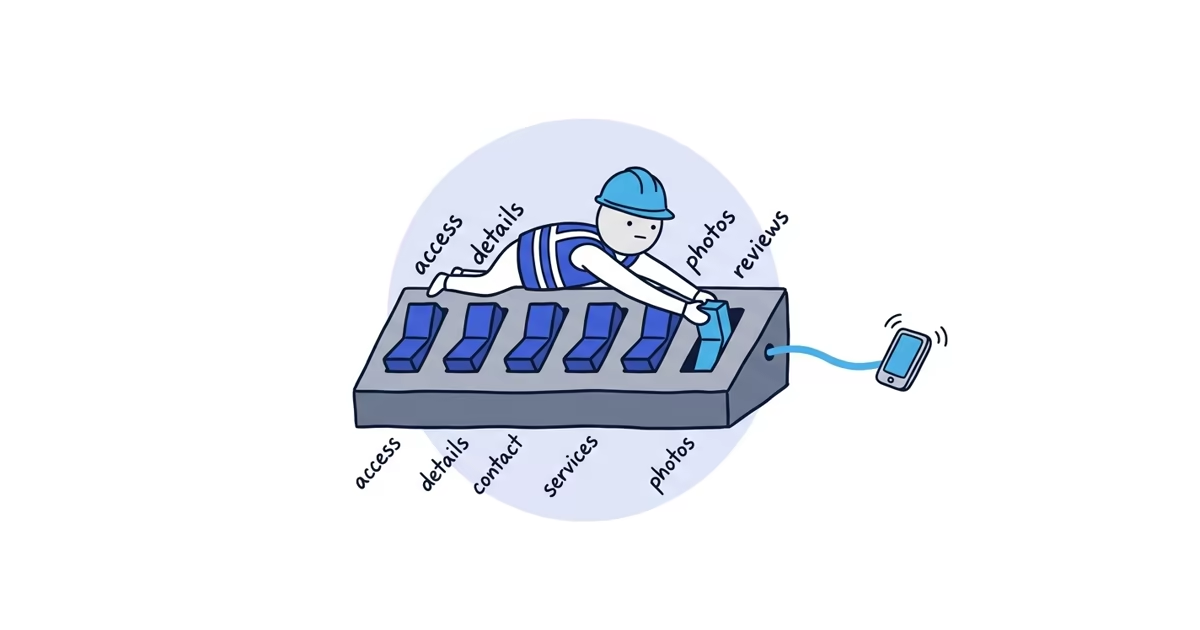
After verification, secure business-controlled access and check the public profile first. Then complete the identity, contact, hours, services, description, photos, review link, and notifications customers and the business need.
Treat the six blocks below as a 30-minute launch pass, not a promise that every profile can be completed in half an hour. Five minutes per block is a useful target when the approved details and photos are ready. If something is missing, put it on a follow-up list and continue instead of losing the session to one vehicle photo or service description.
Google Business Profile post-verification checklist
| Launch block | Move on when |
|---|---|
| 1. Access and public view | A business-controlled account has the right owner role, and the profile opens in Search and Maps |
| 2. Identity and location | The name and category match the business, and the storefront or service-area address setting is correct |
| 3. Contact details, coverage, hours | The phone rings correctly, the website loads, the service area is accurate, and hours match operations |
| 4. Services and description | A customer can recognize the main work without reading keyword lists or promotional copy |
| 5. Authentic photos | The profile shows the real business and its work without exposing customer information |
| 6. Reviews and notifications | The review link opens the correct review flow, and one responsible owner will receive the necessary profile alerts |
The blocks set the order. Their completion tests, not the clock, decide whether the profile is ready.
Check Google Business Profile ownership and public view
Confirm that an account controlled by the business is an owner or primary owner. An agency or outside contractor should have only the access needed for its work. If the business itself does not control an owner account, use the ownership recovery process first so the business secures durable access before making a long list of profile edits.
Then open the public profile on both Google Search and Google Maps. Do not rely only on the management view. Confirm that you have found the correct business and that customers can open it in both places.
Done: The business controls access, and the correct public profile opens on Search and Maps.
Check the business name, category, and location
Check three fields:
- Business name: Use the real name shown on the website, invoices, vehicles, and signs. Remove added cities, services, phone numbers, or promotional phrases that are not part of the name.
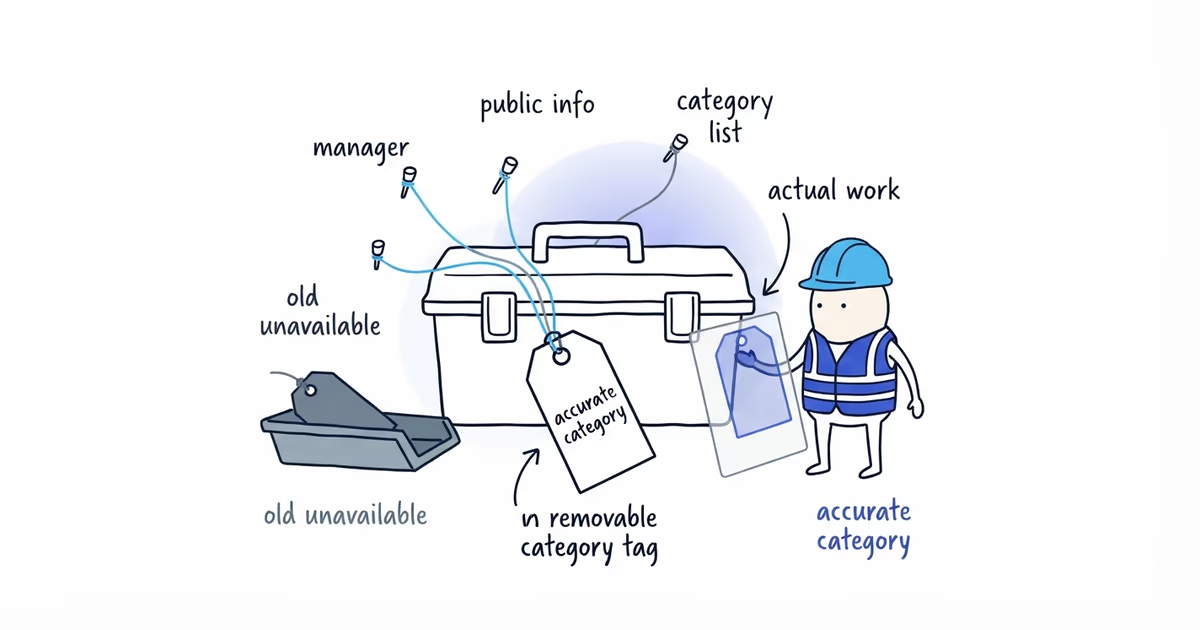
- Primary category: Use the most specific accurate category for what the business is.
- Location: A storefront or hybrid profile should show a real staffed customer-facing location. A service-area business should not expose a home or operating address where customers are not served.
Do not reopen the whole setup process here. If the location model or address visibility is wrong, use the service-area setup guide so customers see the real coverage area without exposing a private operating address.
Done: A customer sees the correct identity and either the correct public location or the correct service area without a private address.
Choose the right phone number, website, and hours
Choose a phone number the business controls
Use a local number when possible, or another direct number that reaches this individual business or location. The business must control it. Call it from another phone and confirm that it rings the right person, team, or business-owned call flow.
Google allows a primary number plus up to two additional mobile or landline numbers; fax numbers do not qualify. Add another number only when customers may genuinely need it. One reliable primary number is more useful than three confusing choices.
A tracking or forwarding number is not automatically wrong. It still needs to lead directly to this business and remain under the business’s control. Do not use a number owned only by a lead seller, unrelated call center, former employee, or outside provider that can take the business’s customer calls away.
Send customers to the right website
Enter the complete URL, including https://. It should load successfully, represent this business or individual location, and allow Googlebot to access it. Do not send customers through a referral page or a redirect to an unrelated business.
For a typical single-location home-service business, use the main homepage. For a genuinely multi-location business, use the page for that exact location when one exists and provides the matching contact and service information.
UTM parameters can be added later for measurement. They are not a reason to delay launch when the core destination already works.
Check coverage and hours
Confirm the service areas, if applicable, and remove places the team does not normally serve. Enter the regular hours when customers can reach or visit the business, plus any special hours already known for upcoming holidays or schedule changes.
Done: The phone connects, the website opens to the right business, the service coverage is accurate, and the displayed hours match actual availability.
Add Google Business Profile services and description
Open the services editor and add the main services customers request. Use Google’s suggested services where accurate, and add a custom service when the real service is missing. Group them sensibly if the profile provides groups.
Do not turn this into an inventory project. A plumber needs the core work such as leak repair, drain cleaning, fixture installation, and water-heater service before obscure one-off jobs.
Write a brief factual description of the business: what it does, who it serves, and the useful facts that distinguish the operation. Do not paste a list of cities and keywords. Google does not allow URLs or HTML in the description, and it says the field should focus on the business rather than promotions, prices, or sales.
The services field lists the work. The description explains the business. They should not repeat each other line by line.
Done: A customer can tell within a few seconds whether the business handles the job they have.
Add authentic Google Business Profile photos
Start with a small set that proves this is a real operating business:
- A clear logo
- Team members doing the work
- A branded vehicle, when available
- Trade tools and equipment
- Recent completed work
- The storefront exterior when customers visit the location
Use current, well-lit images from the actual business. Get customer permission before using photos from a private property, and remove house numbers, documents, license plates, faces, or other details that should not be public.
There is no need to hit a magic photo count. Add enough for a customer to recognize the team and the work, then move on.
Done: The first public images show the real business and its work without exposing customer information.
Create a Google review link and assign notifications
On a computer browser:
- Open the Business Profile.
- Select Read Reviews, then Get more reviews.
- Select Copy to copy the review link. To keep the QR code, right-click it and save the image.
Google currently limits QR-code generation to a computer browser. The review link itself can still be shared in places such as a receipt, thank-you email, or customer chat. Open it while signed out or on another device before sharing it. It should lead to this business’s review flow, not a search page or another location.
Do not offer a discount, free service, gift, or other incentive in exchange for a review. Google requires reviews to reflect genuine customer experiences.
Choose who will monitor the profile. On Google Search, open the Business Profile, select More, then Notifications. Turn on the alerts that person needs, including:
- Account and profile updates
- New reviews and customer-added photos
- Business-information alerts
- Bookings or customer requests, when those features are used
Google may deliver notifications through email, Search, or Maps. The important operational decision is that one named owner is responsible for seeing and acting on them.
Done: The review link works for the correct profile, and a responsible owner receives the necessary alerts.
Test the Google Business Profile customer journey
Before calling the profile launched, repeat what a customer will do:
- Find the public profile on Google Search and Maps.
- Check the business name, location or service area, hours, and main services.
- Tap the phone number and complete a test call.
- Open the website and confirm that the page loads on a phone.
- Inspect the first photos at mobile size.
- Open the review link and confirm that it points to the same business.
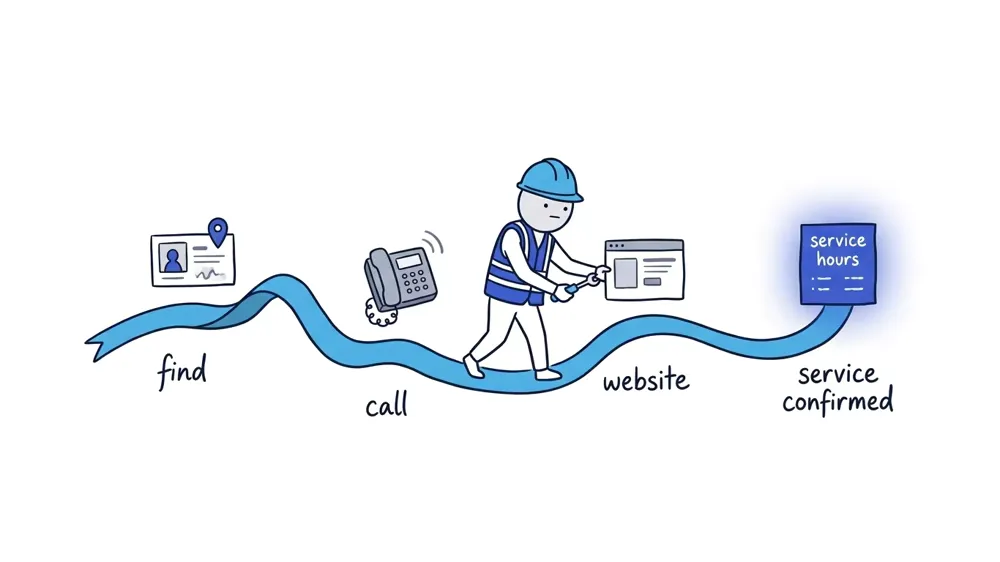
Fix broken contact paths now. Put missing optional content on the follow-up list.
What can wait after Google Business Profile verification
These are not launch blockers:
- A Google Posts schedule
- An ongoing photo cadence
- Secondary-category research
- UTM refinement and reporting
- A full review-request campaign
- Citation cleanup
- Competitor tracking and Maps-ranking work
Those tasks may deserve their own process. They do not need to interrupt the first customer-ready version of the profile.
Once the launch basics are complete, the next challenge is asking consistently instead of remembering after each job. ShiftFlow’s Google review management can set up the request timing, wording, and follow-up so recent customer reviews keep coming in.
How to know when your Google Business Profile is ready
- The business controls the appropriate owner account.
- The public name, category, location or service area, and hours are accurate.
- The phone and website pass a real customer test.
- Core services and a concise factual description are visible.
- Authentic photos show the business and its work.
- The review link points to the correct profile without an incentive.
- A named owner receives and monitors the necessary notifications.
That is launch completeness. It is not a promise of a particular Maps position or lead volume.
Frequently asked questions
Should I use a tracking number on Google Business Profile?
A tracking or forwarding number can work when it reaches this business directly and remains under the business’s control. Keep one reliable primary number and do not depend on a lead seller or outside provider that could take the customer path away.
Why is my home address showing after verification?
Check the profile’s location setting. A service-area business that does not receive customers at its operating address should turn off public address display. A genuine staffed storefront should keep its address visible.
Why does Google ask me to verify again after an edit?
Google may require more information or another verification after important business details change. Use the method now shown on the profile; it may differ from the original verification method.
Sources
- Edit your Business Profile
- Guidelines for representing your business on Google
- Add and remove owners and managers for your Business Profile
- Manage your services on your Business Profile
- Manage your Business Profile photos and videos
- Create a Google link or QR code to request reviews
- Tips to get more reviews
- Manage your notifications
- google-business-profile
- post-verification
- profile-optimization
- google-reviews
- local-seo