How Do I Create or Claim a Google Business Profile for a Home Service Business?
Set up one accurate Google Business Profile for a home-service business without creating a duplicate. Choose the right account, category, location model, phone number, website, and next step.
A Google Business Profile is free. A home-service business is eligible if it meets customers in person or sends team members to customers’ locations. An online-only business is not eligible.
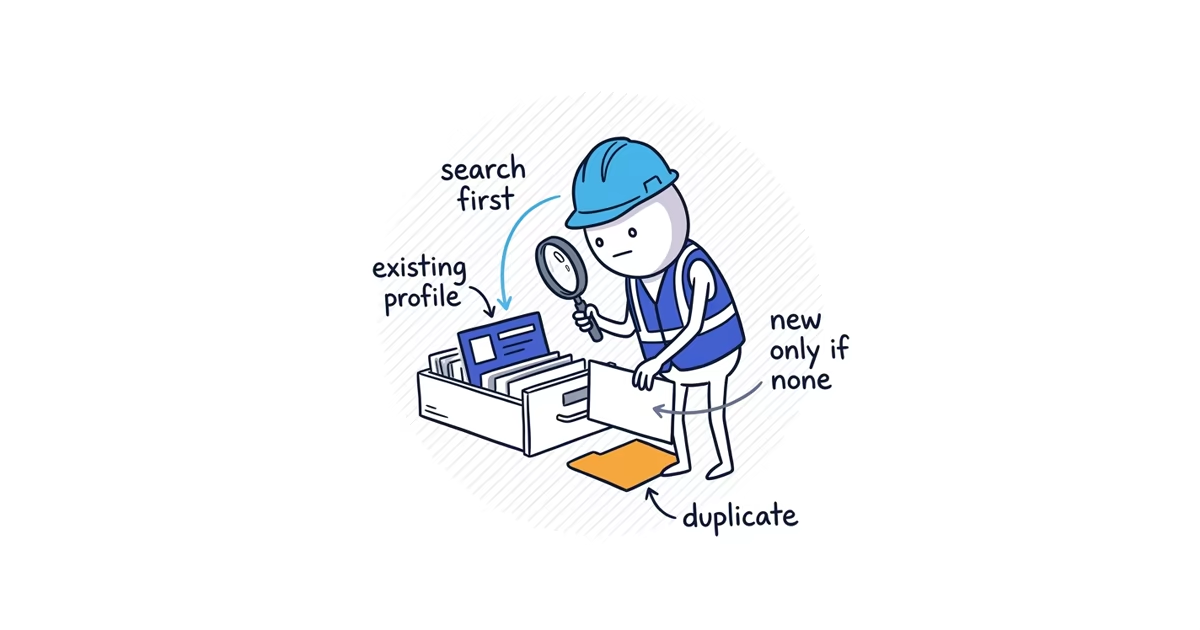
Before you create anything, search your exact business name and city on both Google Search and Google Maps. Google may already have a profile for your business. Creating another one can leave you with duplicate profiles, split management, and cleanup work before you have even finished setup.
Search for an existing Google Business Profile first
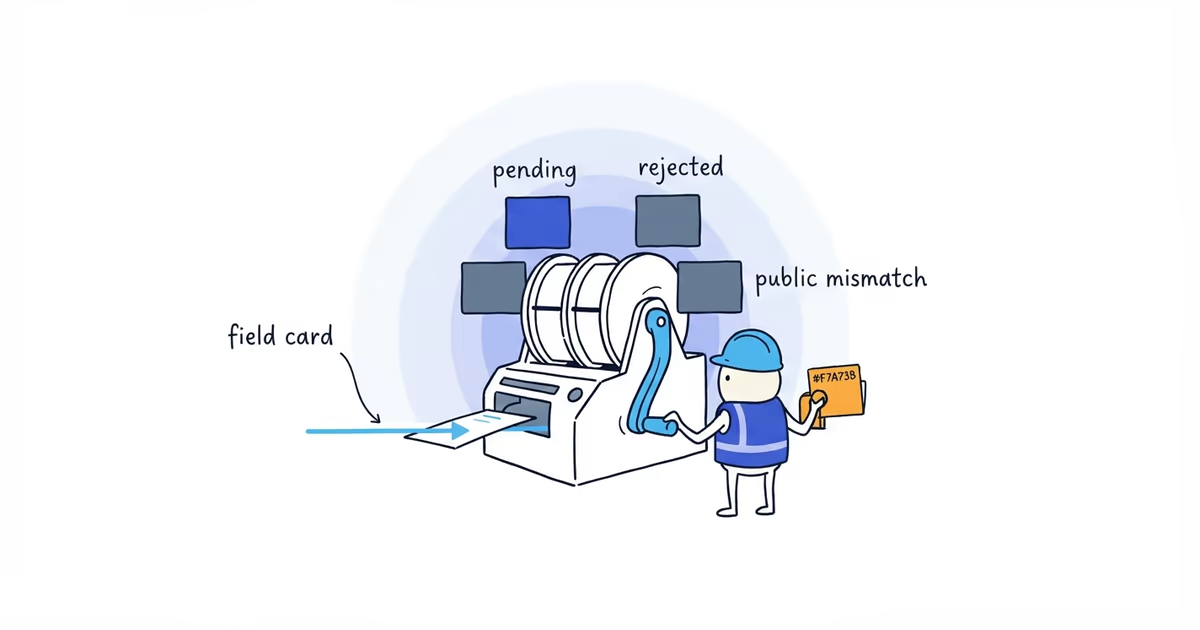
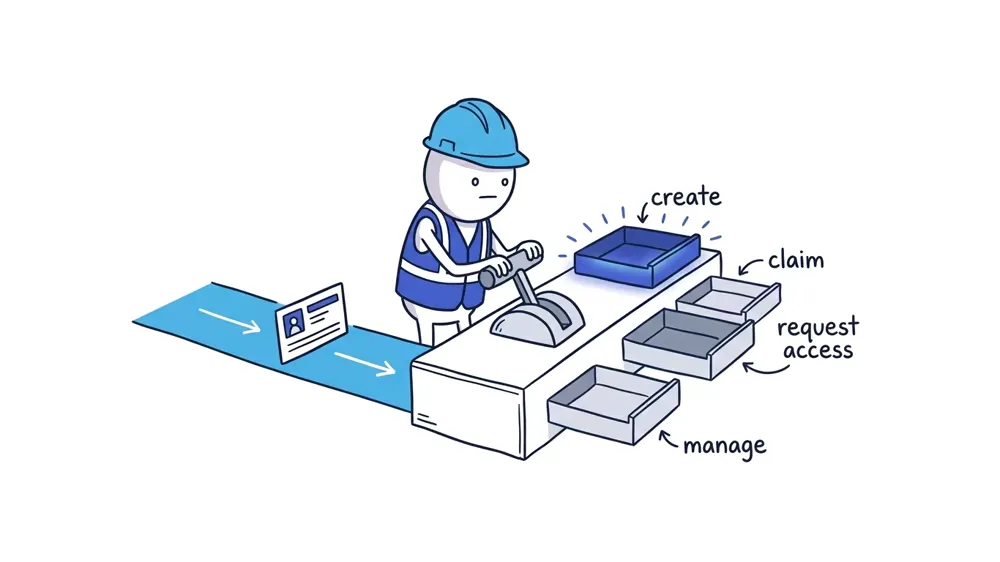
Use this decision tree before entering any business information:
| What you find | What to do next |
|---|---|
| No matching profile exists | Create one profile, enter the core details, and continue until Google shows a verification option |
| The profile shows Claim this business or Own this business? | Claim that existing profile and continue to verification |
| Google says someone else may manage the profile | Request access and continue with the ownership-recovery guide |
| Your signed-in account can edit the profile | Continue managing it; verify if prompted, or complete it if it is already verified |
If you find several possible matches, compare the phone number, website, address or service area, and reviews before choosing one. Do not claim a similarly named business just because it appears first.
Choose a Google Account the business controls
Set up the profile with a Google Account that will stay with the business. Do not make a team member’s personal account or an outside agency’s account the only owner.
The account does not need a new Gmail address. Google allows you to create or use a Google Account with an existing company email address. The important part is that the business controls the email, recovery options, and login credentials.
If the correct profile already appears when you are signed in, keep using it. A second account is not a reason to create a second profile.
How to create a Google Business Profile
If your search confirms there is no profile for this business:
- Go to business.google.com/add.
- Select Add your business to Google.
- Enter the business’s real name.
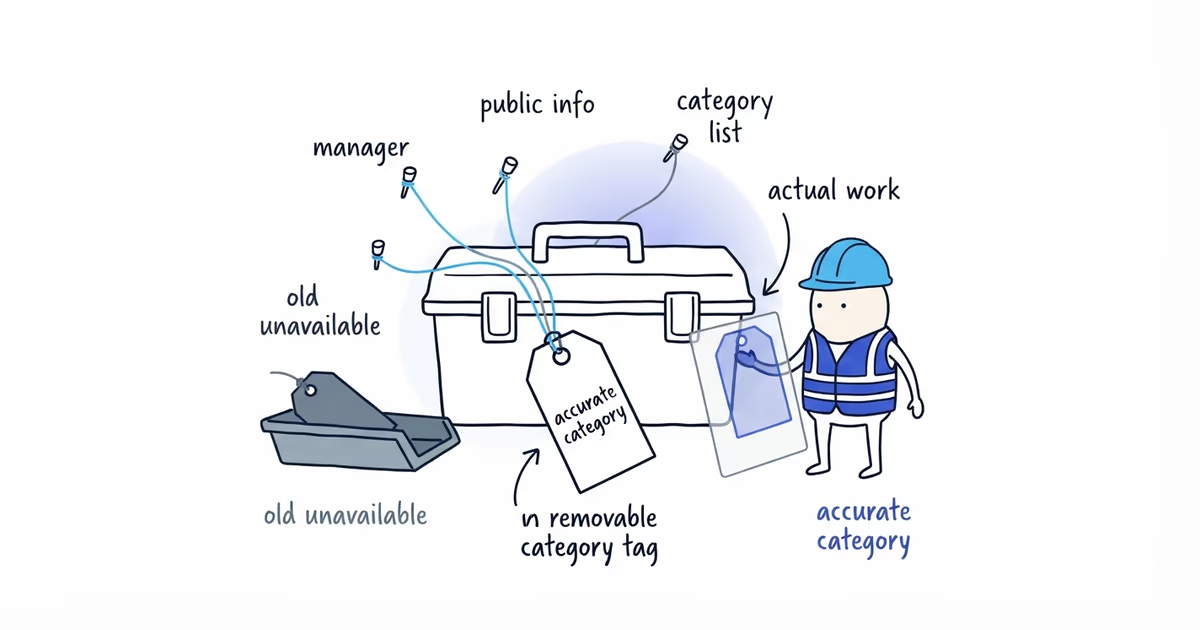
- Choose the most specific accurate primary category.
- Select how the business serves customers.
- Add a direct phone number and the website for this business or location.
- Check the information, then continue to the verification option Google provides.
The fields look simple, but three choices deserve a careful check.
Use the real business name
Use the real-world business name shown on your website, invoices, vehicles, signs, and other business materials.
Do not add a city, service, tagline, phone number, or search phrase unless it is genuinely part of the business name. A plumber called Harris Plumbing should enter that name, not Harris Plumbing - Best 24/7 Emergency Plumber in Dallas.
Google treats those additions as unnecessary information, not as a clever way to get found.
Choose the most specific primary category
Choose the most specific available category that describes the main business. An HVAC contractor should use the closest accurate HVAC category rather than a broad category chosen because it sounds popular.
You can review additional categories later. During setup, the job is to choose one honest primary category and keep moving.
Choose a storefront, service-area, or hybrid profile
Google needs to know where service happens:
- Customers visit the business: Choose the storefront option only if customers are actually served at that location during the stated hours.
- The business visits customers: Set it up as a service-area business. Google may still need a real operating address, but the address should not be displayed publicly when customers are not served there.
- Both happen: Use the hybrid setup when the business has a staffed customer-facing location and also travels to customers.
Do not turn a home, mailbox, or office into a public storefront simply because you think an address will help. The service-area setup guide covers home-address privacy and location eligibility in detail.
Choose the right phone number and website for Google
The primary phone number should connect customers directly to the business or individual location and remain under the business’s control. Avoid using a number owned only by a lead seller, former employee, or marketing provider.
The website should represent the same business or location. For a typical single-location contractor, that will usually be the main business website. Check that the page loads and that the business name and contact details match the profile before continuing.
These are customer contact paths, not placeholders. Call the number and open the URL yourself.
How to claim an existing Google Business Profile
If the correct profile already exists and shows Claim this business or Own this business?, do not recreate it.
On a computer, Google currently directs owners to:
- Open Google Maps and search for the business name and city.
- Select the correct profile.
- Select Claim this business, then Manage now.
- Follow the on-screen instructions until Google presents a verification option.
That is the ordinary claim path for an unverified profile. It keeps the existing listing intact.
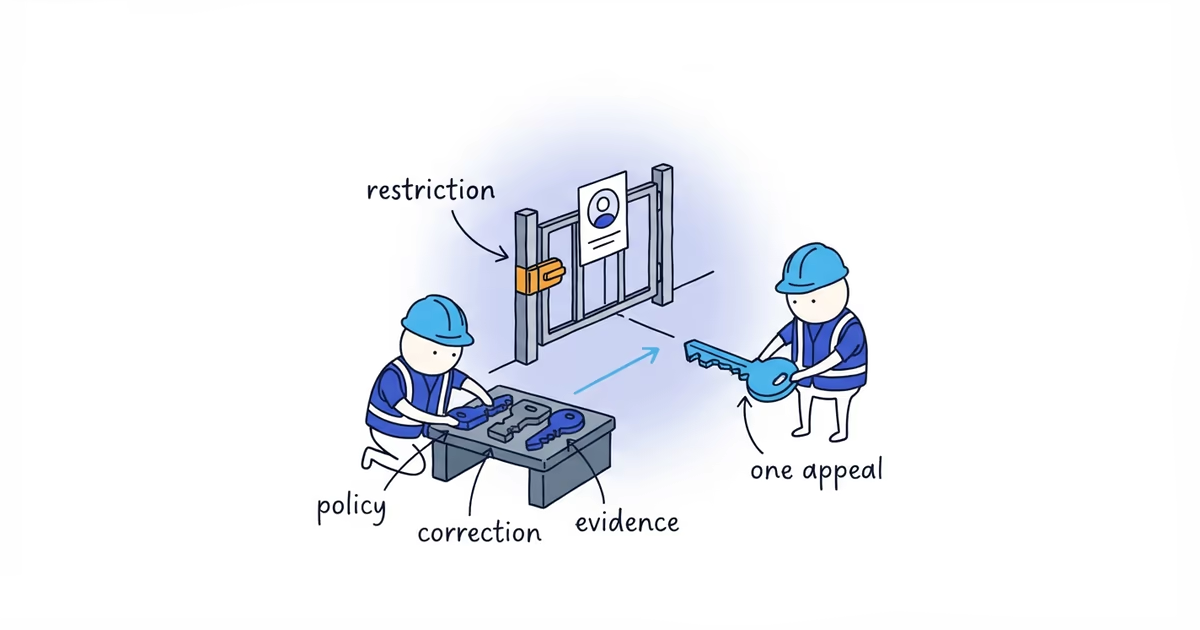
If Google says someone else has already verified or may manage the profile, stop there. That is an ownership issue, not a new-profile setup. Follow the ownership recovery guide so you request the right access without creating a replacement.
Complete Google Business Profile verification
Once the correct profile has the correct core information, continue to verification. Google automatically determines which methods are available for that profile, and it may require more than one method. You cannot freely switch to a method that is not offered.
Do not change the business name, category, or location just to try to trigger a different option. When Google shows the required method, use the verification guide to prepare matching evidence and avoid an incomplete submission, especially if Google asks for a video.
This setup article stops at that prompt. Services, description, photos, a review link, and other launch work come after verification.
If you would rather have someone check the existing profile, correct the core fields, and work through verification with you, ShiftFlow’s Google Business Profile setup provides that launch help while the business remains the owner.
What to do after Google Business Profile setup
Setup is complete enough to move on when all five points are true:
- You searched Search and Maps before creating anything.
- The business has one correct profile, not a new duplicate.
- A business-controlled Google Account owns the profile or has requested access.
- The name, primary category, customer-location model, phone number, and website are accurate.
- The next action is clear: verify the profile, wait on an ownership request, or complete the already verified profile.
Stop here once you know which path applies. Verification, ownership recovery, and post-verification launch each have their own steps; completing them inside this setup guide would only make it harder to see what to do next.
Frequently asked questions
Is Google Business Profile free?
Yes. Google says eligible businesses can add or claim a Business Profile at no charge.
Does one profile put my business on both Google Search and Google Maps?
Yes. The same Business Profile controls how the business information can appear across Search and Maps. You do not create one profile for Search and another for Maps.
Is a home-based trade business eligible?
Yes, if the business meets customers in person or travels to them. If customers do not visit the home, use the service-area model and do not display the home address publicly.
Do I need a profile if I already have a website?
The website and Business Profile do different jobs. The website explains the business in depth; the profile provides the business information customers see on Google Search and Maps. An eligible home-service business can use both, but the profile must represent a real business that serves customers in person.
Sources
- google-business-profile
- google-business-profile-setup
- home-service-business
- google-maps
- local-seo