How Do I Create a Google Review Link?
Get the review link and QR code out of your own Business Profile, prove they work the way a customer sees them, and put them where the whole crew can reach them.
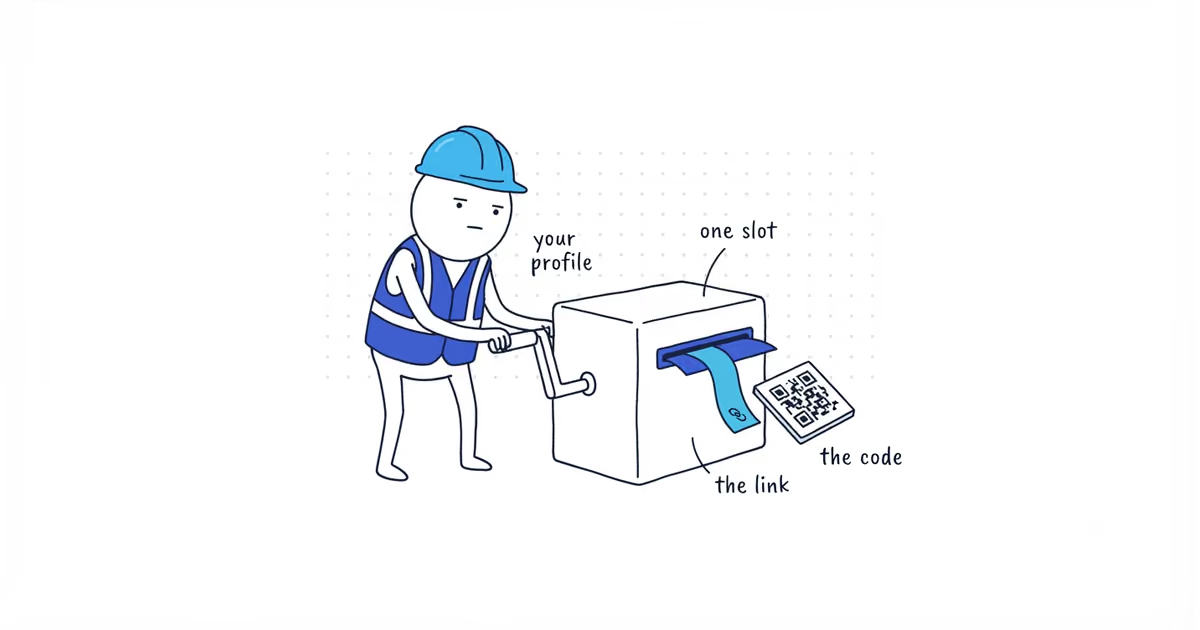
The Google review link comes from your own Business Profile. Open the profile on a computer, choose Read Reviews, then Get more reviews, then the share icon. Copy the link from there. The same screen also produces a QR code for anything you print.
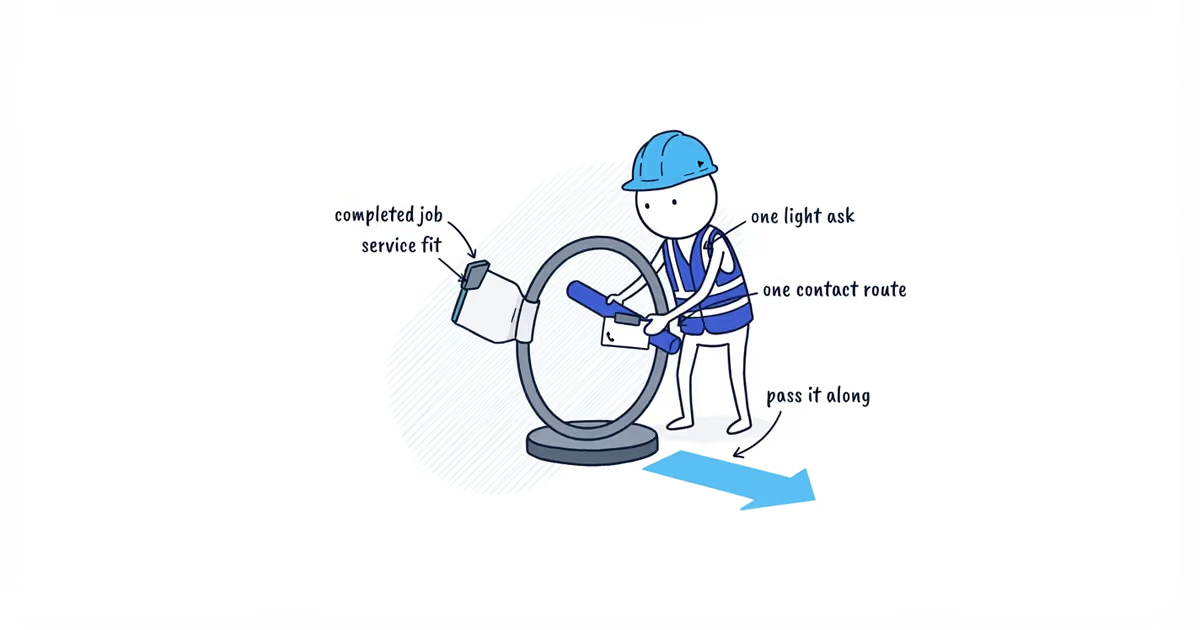
Most owners are not losing reviews because customers refuse. They are losing them to the phrase “look us up on Google and leave a review,” which asks a customer standing in their driveway to run a search, pick the right listing, scroll, and find the review control. The link removes all of that. It opens the review box directly.
Google documentation checked: July 30, 2026 (United States). Google changes labels by account and device, so follow the controls shown on the live profile.
How to get your Google review link and QR code
- Open the Business Profile at
business.google.comon a computer, signed in to the account that manages it. - Choose Read Reviews.
- Choose Get more reviews.
- Select the share icon.
- For the link, select the copy icon.
- For the QR code, right-click the code and choose Save image as…
Do this on a computer even if you run the whole business from your phone. Google documents that review QR codes can only be generated on a computer browser, not on a mobile device. The link itself is easier to copy on a desktop too, and you only have to do this once.
You do not need a paid QR generator or a link shortener. Google produces both the link and the code from the same screen.
Google review link vs. Maps profile URL
This is the most common mistake, and it is invisible — the link works, so nothing looks broken.
A profile URL is the address of your listing. Copy it out of the browser bar on Google Maps and send it to a customer, and they land on your business page: photos, hours, phone number, directions, and reviews they can read. They now have to find the review control themselves. Some do. Most were doing you a favor in a spare minute and that minute is gone.
The review link opens the review box itself, with your business named at the top and the rating ready to select. Nothing to find.
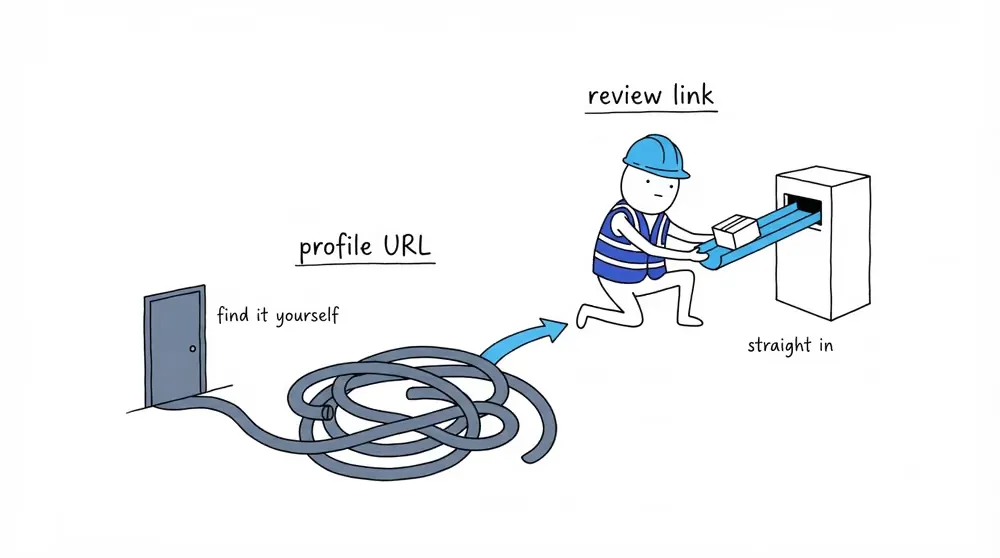
If you are not sure which one you have, do not guess. Test it.
How to test your review link on a phone
Test it the way a customer will see it, not the way you see it.
- Open the link on a phone, not the computer you copied it from.
- Be signed in to a Google account that does not manage the profile — a personal one is fine. Do not test it signed out entirely: a reviewer has to be signed in to post, so a signed-out window shows you a sign-in prompt instead of the review box, and tells you nothing about the link.
- Confirm the review box opens with the rating ready to select.
- Confirm the business name shown is yours, and is the right location if you have more than one.
Signed in as the owner, a bad link can still look fine. A second account on a phone is the test that tells you what the customer gets.
Why customers say the review link is not working
Usually the link is fine and the customer is not signed in. Google requires a reviewer to be signed in to a Google Account to post a review, and an account can be created with a non-Gmail address.
That is worth knowing because it changes your answer. Resending the link is not the fix. Re-test it yourself first, on a second account. If it opens correctly, the problem is on the customer’s side, and sign-in is the usual one. If it does not open correctly, you have a link or a profile problem — a stale link, a merged or duplicate profile, the wrong listing — and that one is yours.
Do not offer anything to smooth this over — Google removes reviews left in exchange for a discount or free work, and can restrict the profile for it. Asking is fine; paying is not.
How to send a Google review link by text
Two rules, and both come from how a phone shows the message.
- Paste the full link. Do not wrap it in a third-party shortener the customer has never seen; an unrecognizable short link in a text from a number they half-remember reads like spam. A short path on your own domain is the exception — that one is recognizable, and it is what belongs on a printed card.
- Put it last. Whatever you put after it competes with the tap you actually want.
The wording that goes around the link is its own subject. Once the link itself works, our review request templates give you the message to put it in, with a different one after an emergency call than after a scheduled visit.
Where to save and share your review link
The link is worth five minutes of setup because you will use it for years.
- Get the link and save the QR image, on a computer.
- Test the link on a phone, signed in to an account that does not manage the profile.
- Save the link somewhere the whole crew can reach it — not one person’s phone. A shared note, the team chat pinned message, or the field app the crew already opens.
- Paste it into the places a customer will meet it.
- Re-test it after a profile merge, duplicate resolution, or other major profile change.
Google’s own suggestions for where the code and link belong are receipts, thank-you emails, and a printed code on display. For a home-service business, the places that actually reach a customer at a moment they can act are:
- The text you send after a finished job
- The invoice or the receipt
- Your email signature
- A card or leave-behind the crew hands over
- The thank-you page on your website
A printed card has its own requirements — size, contrast, and stock all decide whether the code scans — and those belong with the card, not here.
Common review link and QR code problems
| What you see | What is actually happening | Fix |
|---|---|---|
| Customer says the link opened your business page, not a review box | You sent the Maps profile URL instead of the review link | Get the link from the share screen and re-test it on a second account |
| The QR code will not scan | Printed too small, or printed on gloss | Re-print larger on matte stock; check the code size against the card spec before ordering |
| Only one person can send the link | It lives in the owner’s phone | Move it somewhere the crew can reach without asking |
| The link stopped opening the right profile | The profile was merged, replaced, or was the wrong one | Re-copy the link from the intended profile’s share screen and re-test |
| Customer says it would not let them review | Usually a sign-in problem on their side | Re-test on a second account. If it opens, it is not yours to fix; if it does not, treat it as a link or profile problem |
| You cannot find the QR option anywhere | You are on a phone | Open the profile on a computer; Google only generates review QR codes there |
Frequently asked questions
Do I need a Google Business Profile to create a review link?
Yes. The link is generated from a claimed profile — there is nothing to copy until one exists. If yours is not claimed and verified yet, that comes first; our Business Profile verification guide covers the methods Google offers and what to do when one of them fails.
Does a Google review link expire?
Google does not publish an expiration date for the review link. Re-test it after a profile merge, duplicate resolution, or other major profile change, and before you print anything that carries it.
Can I use a link shortener for my Google review link?
Not a third-party one the customer has never seen; in a text message it reads like spam. A short path on your own domain is a different thing, and that is what belongs on a printed card.
Sources
- google-reviews
- google-review-link
- review-qr-code
- google-business-profile
- home-services