How Do I Remove a Duplicate Google Business Profile?
Identify the correct Google Business Profile, choose the right ownership, removal, or merge path, and verify the duplicate is resolved without losing access.
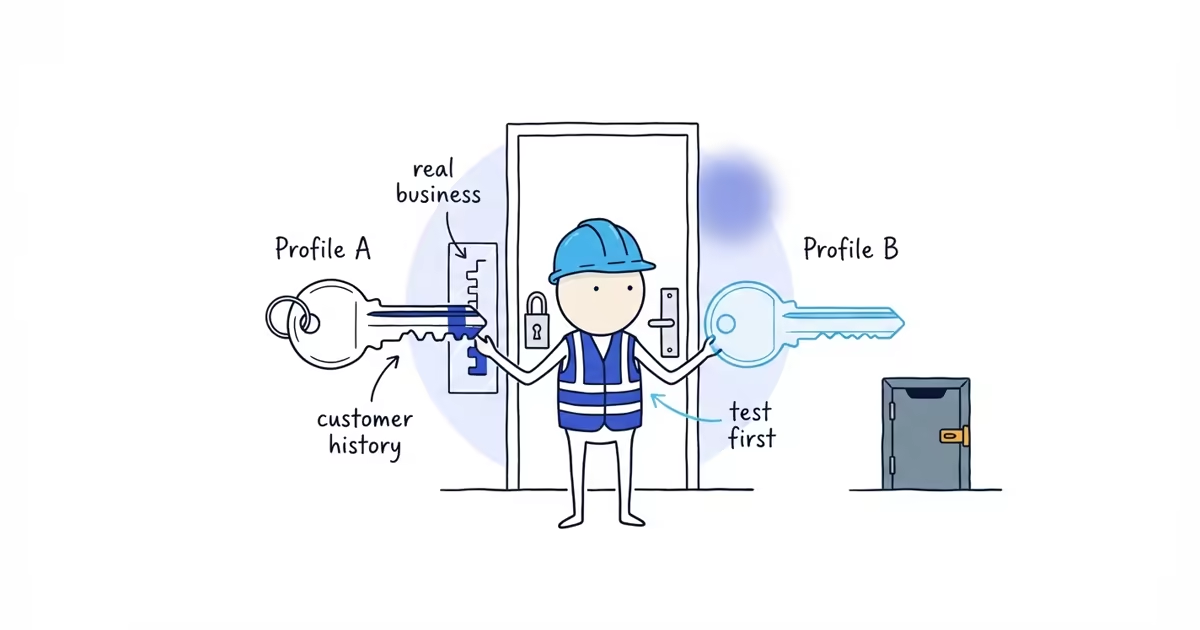
Do not delete either profile until you know which one should represent the business.
Google uses different remedies for different duplicate problems: request ownership, remove an accidental profile from your account, suggest a merge in Google Maps, update a moved business, or appeal when two distinct businesses were incorrectly treated as duplicates. “Delete the extra one” is not a safe universal instruction.
Google duplicate, ownership, and removal guidance checked: July 30, 2026 (United States).
How to identify the correct Google Business Profile
Open each profile while signed out and create a side-by-side record:
PROFILE A / PROFILE B

Google Maps URL:
Public status:
Owner account:
Verified or unverified:
Review count:
Owner replies:
Photos and other content:
Phone:
Address or service area:
Primary category:
Current or former location:
Business history:
Save screenshots. Google warns that removing an accidental duplicate from an account removes its content and linked managers, so “this one looks emptier” is not enough evidence.
The profile to preserve is the canonical profile: the eligible profile that matches the real business now while retaining its legitimate ownership, customer visibility, reviews, and history. The newest profile or easiest login is not automatically canonical.
Which duplicate Google Business Profile fix should you use?
Another person owns the existing verified profile
Request ownership instead of creating another profile.
Google’s current response window is three days. Approval grants management, denial provides an appeal route, and no response may expose a claim option. The profile ownership guide walks through the request, response, and appeal paths.
Record the account, date, profile URL, and every email from Google. Do not create a third profile while waiting.
The existing profile is unverified
Claim and verify that profile. An unverified business already visible on Maps is not a blank space that needs a second listing.
You created an accidental duplicate in your own account
Confirm that the accidental profile is not the one holding the business’s reviews, history, correct verification, or unique content. Then use Google’s current process to remove that duplicate Business Profile from the Google Account.
This action removes the profile from the managing account and removes its content and linked managers. It is different from requesting that a public place be removed from Search and Maps. Follow the official account-removal path and verify the public result afterward.
Two live Maps profiles represent the same business
Google says merge requests are made by reporting a suggestion on Google Maps and are subject to review. The profiles must represent the same business and should have the same information.
Before submitting, align only factual business information you are authorized to correct. Do not rename one profile, change categories, or mark the canonical profile permanently closed to force a merge.
Google says reviews are combined when two profiles are merged, but replies to reviews may be lost. Save important replies before submitting. Do not promise that photos, posts, or every other profile element will transfer.
Google marked two distinct businesses as duplicates
Use Google’s support route to appeal the duplicate status. Both businesses must be eligible and genuinely distinct.
Google says businesses at the same address can each have profiles when they are distinct, eligible businesses with different names and clearly visible differences in signage. If both serve customers at the same location, Google may ask for evidence of permanent signage showing both businesses.
Do not merge two real companies because they share a building, and do not invent a second identity to preserve an ineligible listing.
One profile shows the former address after a move
Update the existing canonical profile with the new address. Google specifically tells moved businesses not to create a new Business Profile for the new location.
Preserve proof of the move and search the old address after the update. If other sites still publish the former location, the business information correction guide helps trace and correct those records without creating a new city profile.
Separate profiles were created for separate services
Google says a business offering different services should list those services on one Business Profile instead of creating a profile for each service.
A plumber does not need separate profiles for drains, water heaters, and emergency plumbing. The same principle rules out copies created only for cities served, employee homes, borrowed addresses, or virtual offices unless each profile represents a genuinely separate eligible business.
Duplicate Google Business Profile decision tree
Does another owner control the profile that should remain?
  -> Request ownership.

Is the existing public profile unverified?
  -> Claim and verify it.

Did your team create an accidental duplicate in its own account?
  -> Confirm the canonical profile, then use account removal.

Are two live Maps profiles the same business?
  -> Suggest the duplicate/merge correction in Google Maps.

Are two eligible businesses wrongly treated as one?
  -> Appeal the duplicate status with eligibility and signage evidence.

Did the business move?
  -> Update the existing profile.

Were profiles created for individual services?
  -> Keep one eligible business profile and list Services there.
If the evidence does not fit one branch, stop and use Google support. Guessing with a permanent-closure or deletion action can hide the wrong profile.
What not to do with duplicate Google Business Profiles
- Do not mark the canonical profile permanently closed.
- Do not remove your own access before recording ownership and history.
- Do not change names or categories to make profiles look identical.
- Do not create a replacement profile for a move, service, or city served.
- Do not send conflicting edits from several owner accounts.
- Do not promise a ranking recovery or fixed resolution date.
Split reviews are a reason to document carefully, not permission to force a merge between different businesses.
How to verify a Google Business Profile merge or removal
After Google acts, search while signed out for the exact business name, current and former phone numbers, current and former addresses, and business name plus city. Check both Search and Maps.
The surviving profile should show the correct name, phone, website, address or service area, and category. Compare its URL and reviews with the pre-change record. Save the support or edit reference and final screenshots.
If the canonical profile disappears, an old profile remains, or a distinct business is still marked duplicate, continue under the same evidence record. Do not “start clean” with another profile.
If the duplicate is part of a wider mismatch across Google, Yelp, Facebook, Apple Maps, or Bing, a local listings cleanup can bring those customer-facing records back to the verified business information.
Frequently asked questions
Can I delete a Google Business Profile I do not own?
Do not create or delete a replacement profile to work around ownership. Request access to the existing verified profile or use the appropriate Maps or support route for the actual duplicate problem.
Can two businesses at the same address have separate Google profiles?
Yes, when they are distinct, eligible businesses with different names and clear real-world identities. Google may request permanent-signage evidence when both serve customers at the same location.
Can I create a Google Business Profile for every service I offer?
No. Google says a business should list its different services on one eligible profile rather than create a separate profile for each service.
Sources
- google-business-profile
- duplicate-listings
- google-maps
- profile-ownership
- local-seo